
Tasks
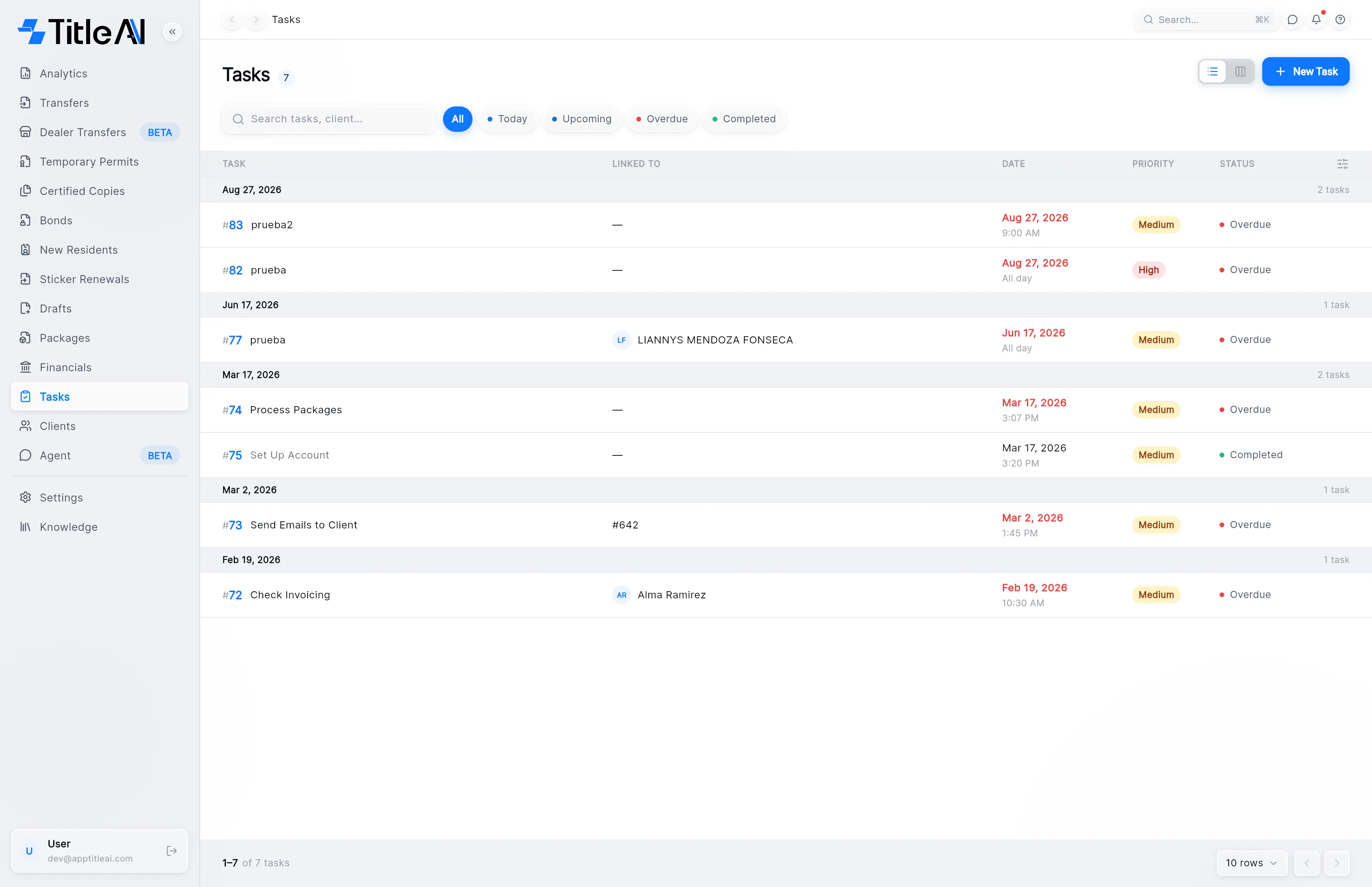
Tasks in the sidebar is the office’s to-do list: every task, whether it was added here or from a trámite’s notes. Each one has a due date and a priority, and can be tied to a transfer, a client, an invoice or another record, so you know what it is about.
The tasks list
Section titled “The tasks list”
- Search box: matches the task and the client.
- Chips: Today, Upcoming, Overdue or Completed, one at a time. All shows everything.
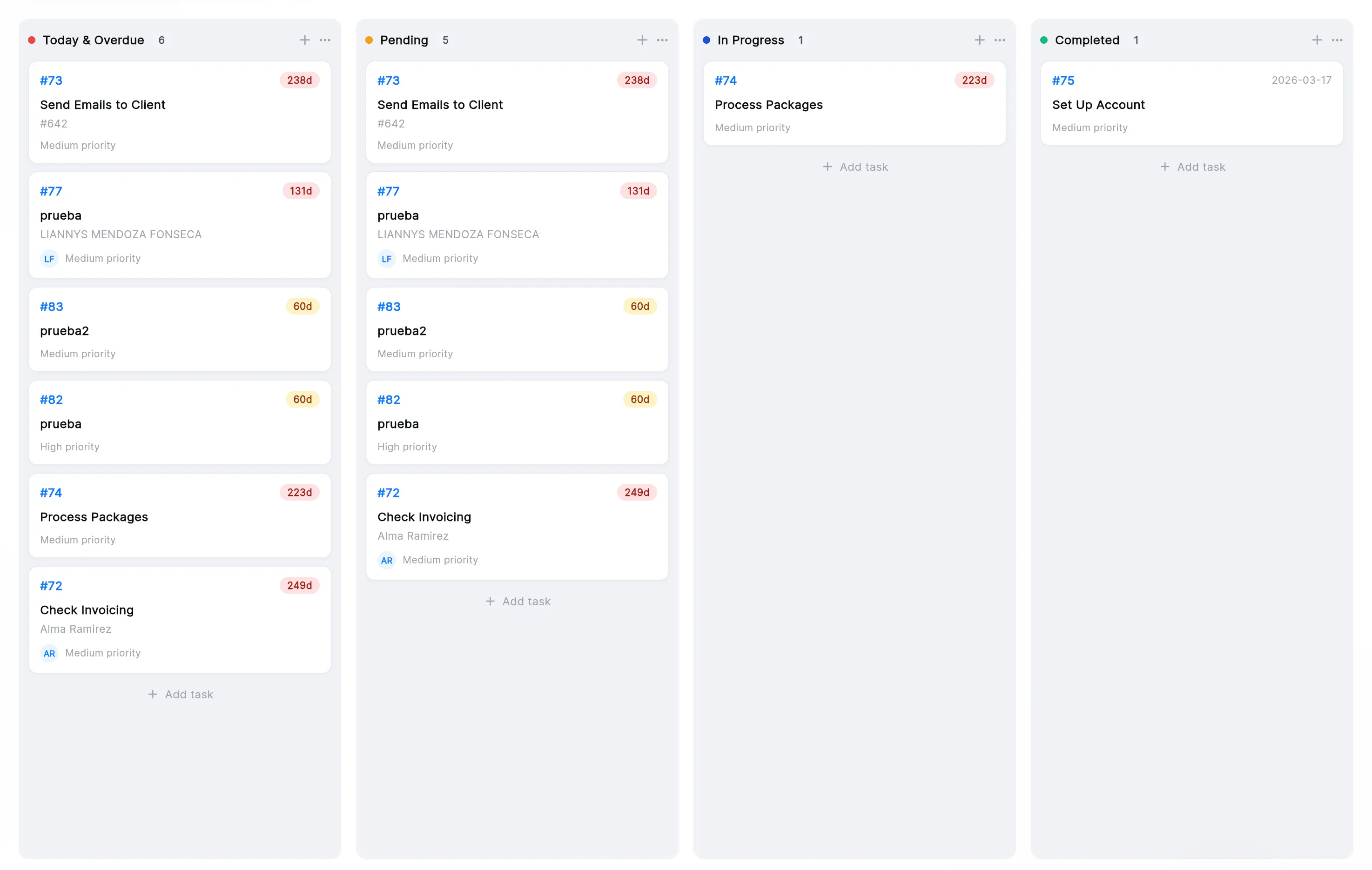
- List / board switch: the two icons left of New Task. The board has a column per status, and dragging a card changes its status.
- Column settings: the icon at the right end of the table header.
What the columns mean
Section titled “What the columns mean”| On screen | What it means |
|---|---|
| Task | The task’s number and title, with its description underneath. |
| Linked to | The client and the trámite the task is about, or ”—” when it isn’t linked to anything. |
| Date | When it is due. Red means it is past due. Underneath, the time or “All day”. |
| Priority | High, Medium or Low. |
| Status | Pending, In Progress or Completed. A task past its date that isn’t done reads Overdue. |
| Today & Overdue | The first board column: what is due today or late, whatever its status. The same cards also sit in their status column. You can’t drop a card here. |
Add a task
Section titled “Add a task”-
Press New Task at the top right.
-
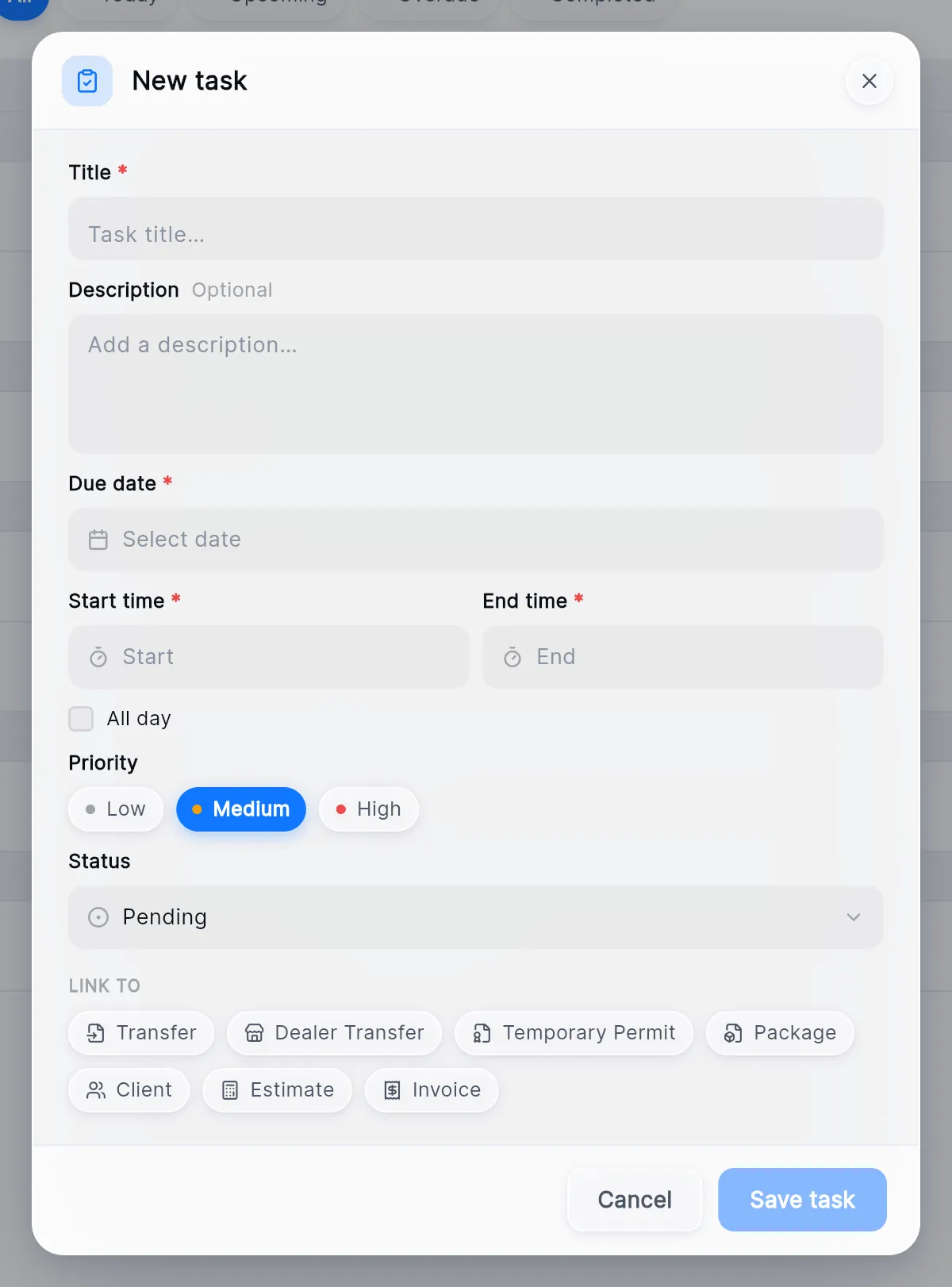
Give it a Title, and a Description if it needs one.
-
Pick the Due date, then a Start time and End time, or tick All day.
-
Choose the Priority: Low, Medium or High.
-
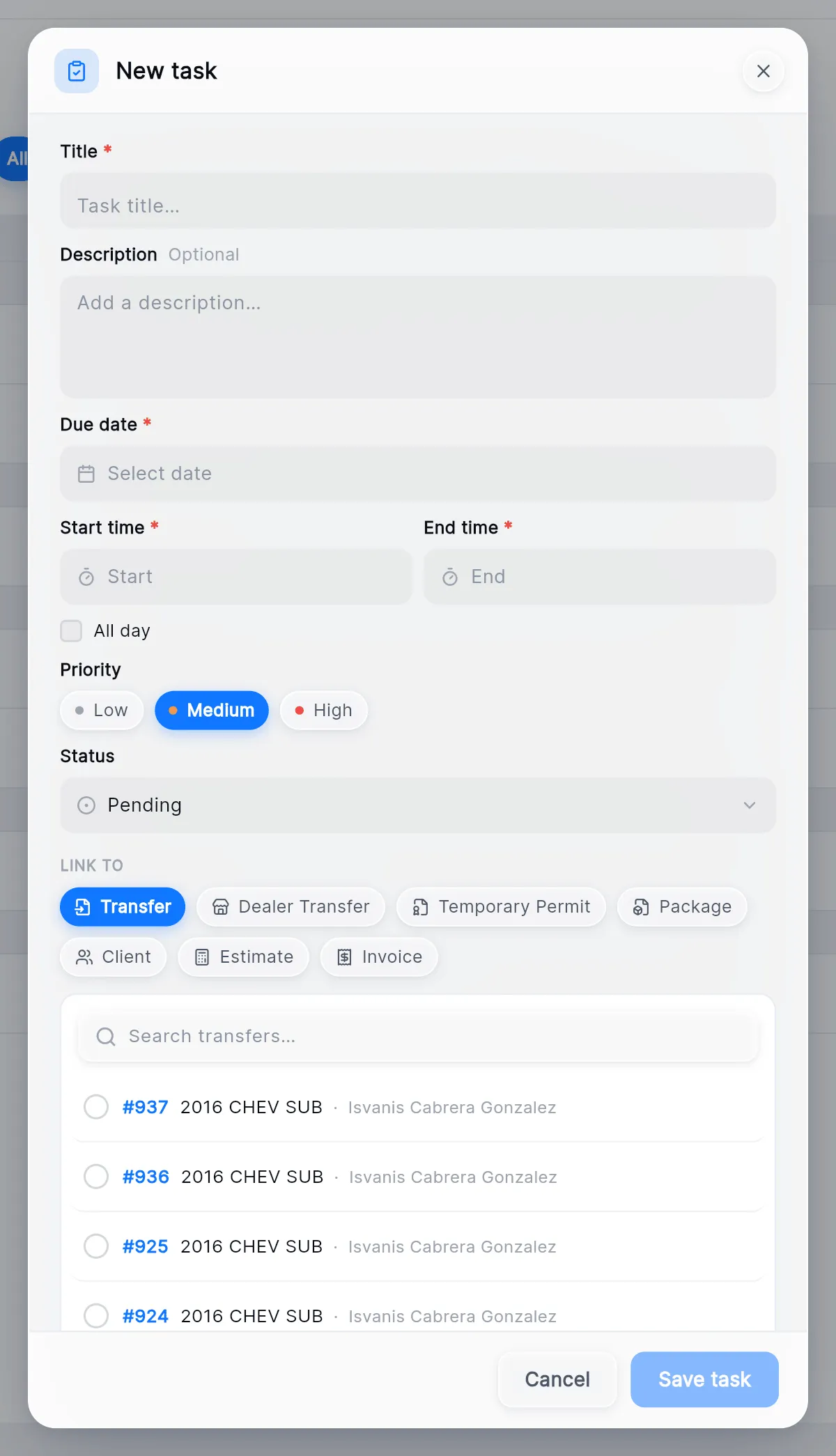
Under LINK TO, pick what the task is about: Transfer, Dealer Transfer, Temporary Permit, Package, Client, Estimate or Invoice. Search for it and choose it in the list. Click the chip again to clear the link.
-
Press Save task.
A task added from a trámite’s Notes & tasks panel is linked to that trámite on its own and shows up here too. See Notes & tasks.
Find what is late
Section titled “Find what is late”-
Turn on the Overdue chip.
-
Read down the Date column; the red dates are the ones past due.
On the board, the Today & Overdue column gives the same answer at a glance.
Finish or change a task
Section titled “Finish or change a task”Click the task to open it in Edit task. Set Status to Completed and press Update task. On the board, drag the card to Completed instead.
In Edit task you can also change the title, date and priority, or press Delete. The link can’t be changed once the task is saved.