
Bonds
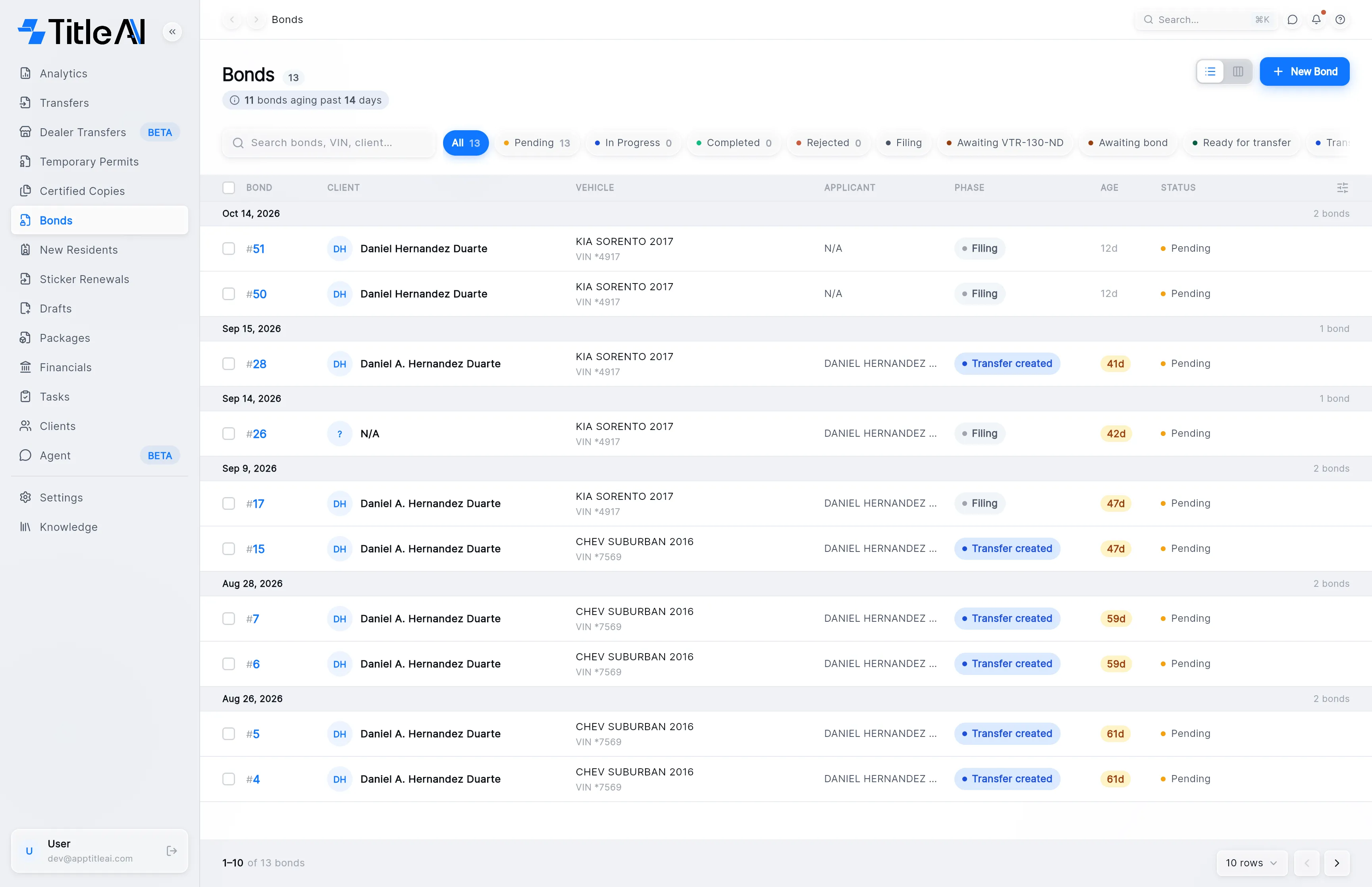
Bonds in the sidebar holds every bonded title in the office. Each bond carries two labels that are easy to mix up: its phase, which TitleAI sets from what has been filed and uploaded, and its status, which you set by hand.
Phase and status
Section titled “Phase and status”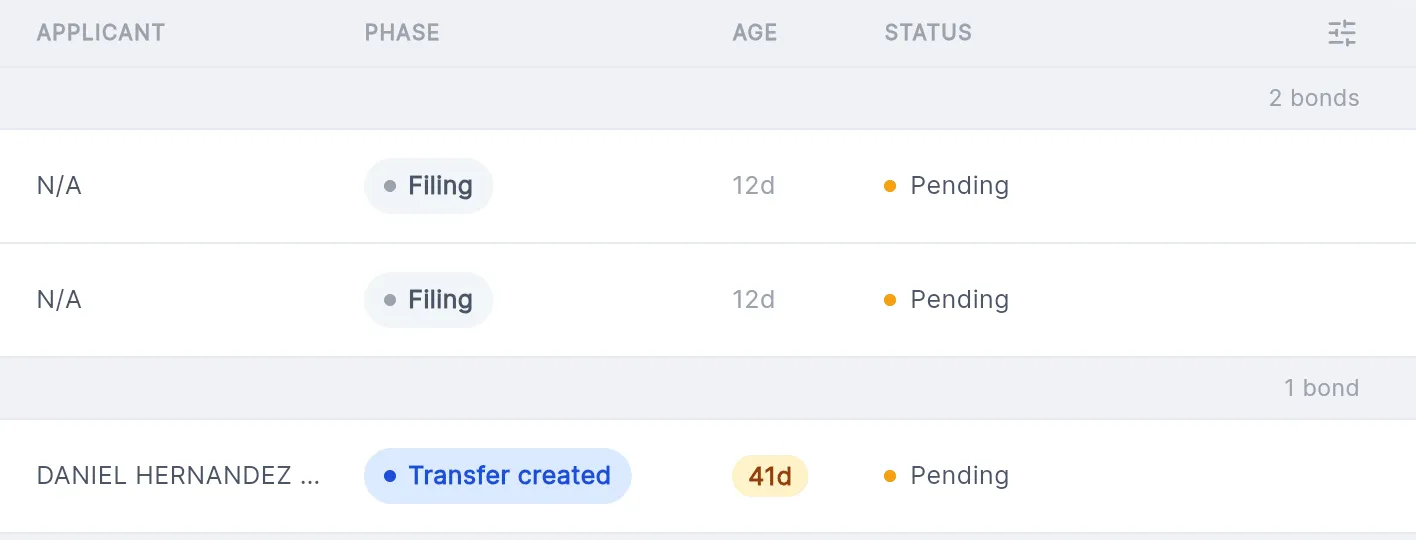
The phase says what the bond is waiting for. You can’t change it; it moves on its own as you mark the bond filed and upload each document.
| Phase | What it means |
|---|---|
| Filing | Still being put together, not marked as filed yet. Every bond starts here. Grey. |
| Awaiting VTR-130-ND | Marked as filed; waiting for the VTR-130-ND to be uploaded. Amber. |
| Awaiting bond | The VTR-130-ND is in; waiting for the VTR-130-SB. Orange. |
| Ready for transfer | The VTR-130-SB is on file. The bond can start its title transfer. Green. |
| Transfer created | The title transfer has been started and the bond goes along with it. Blue. |
The status (Pending, In Progress, Completed, Rejected) is your own label for the bond. Change it from the status pill on the bond, or by dragging its card in the board view. Changing one never changes the other.
The bonds list
Section titled “The bonds list”
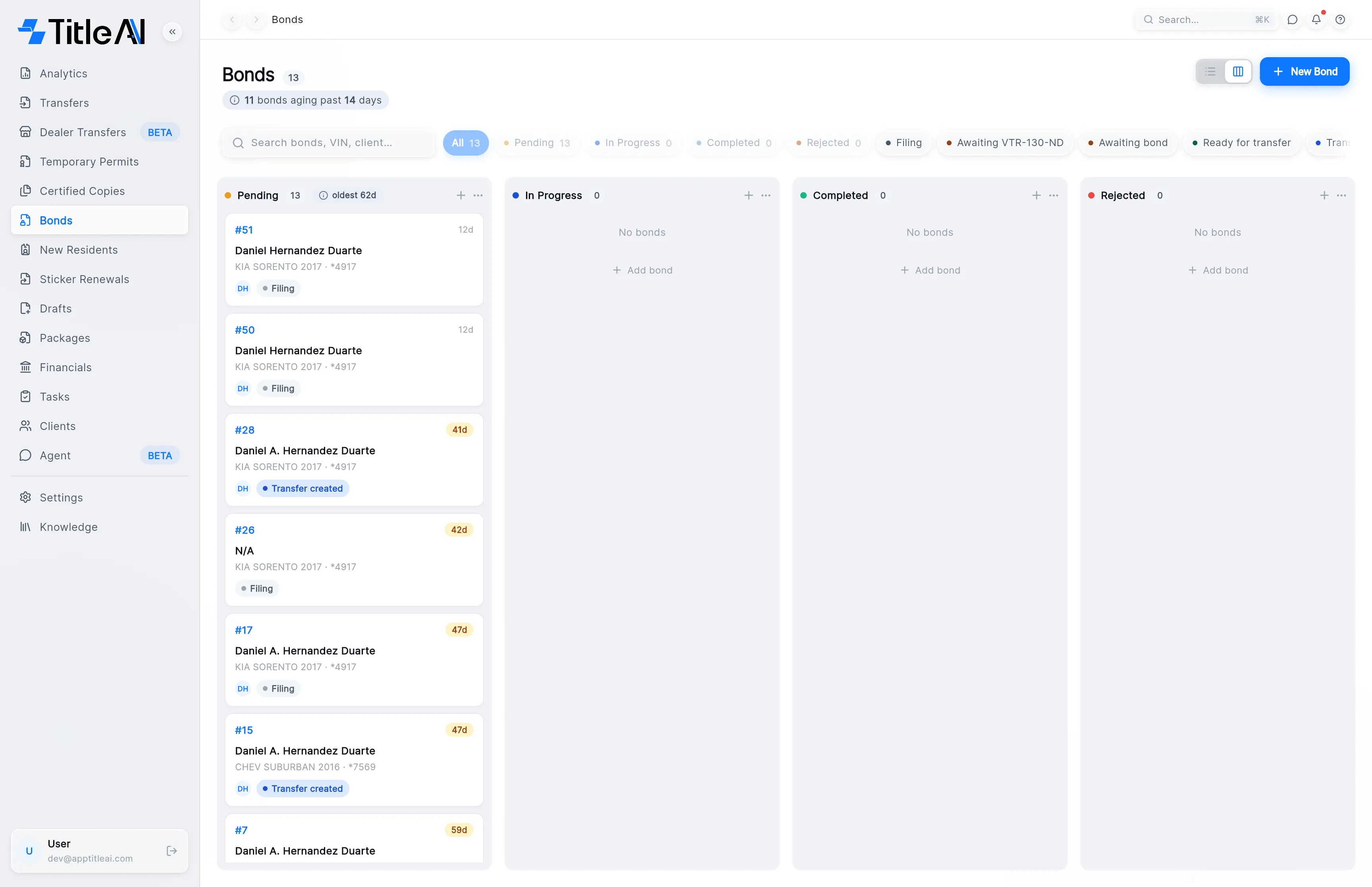
- Status chips (All, Pending, In Progress, Completed, Rejected) filter by status. They carry counts, and more than one can be on at once.
- Phase chips (after the status chips) filter by phase, so you can pull up every bond stuck at the same point. Both sets can be on at the same time.
- Search box: matches the bond number, the VIN and the client’s name.
- Board view: the second icon left of New Bond. One column per status. Dragging a card changes its status, never its phase.
| Column | What it means |
|---|---|
| Applicant | The name on the VTR-271, usually the client. |
| Vehicle | Year, make and model with the last four of the VIN. “N/A” means the forms haven’t been read yet. |
| Age | Whole days since the bond was created. |
Create a bond
Section titled “Create a bond”The bond wizard has two steps: Upload Documents and Review & Finish. Nothing is filed until you press Submit.
-
On the Bonds list, press New Bond at the top right. The wizard opens on Upload Documents.
-
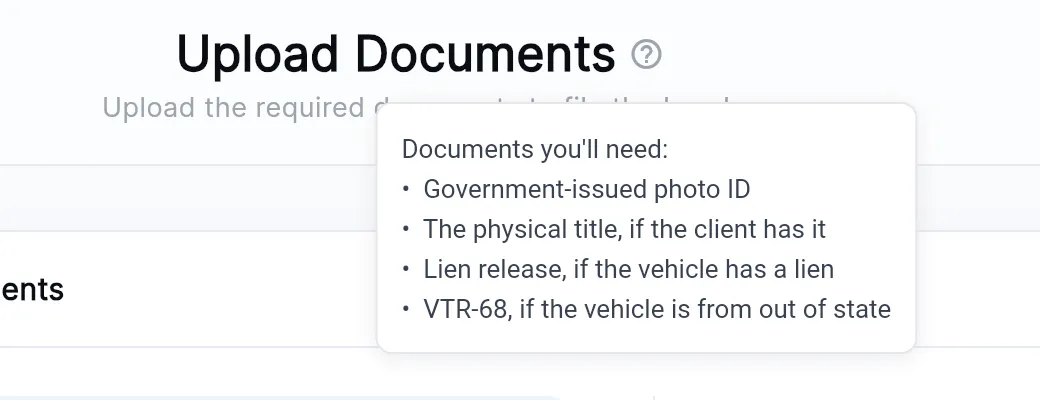
Drop the customer’s documents onto the box, or click it to browse. The ? next to the title lists what to bring.
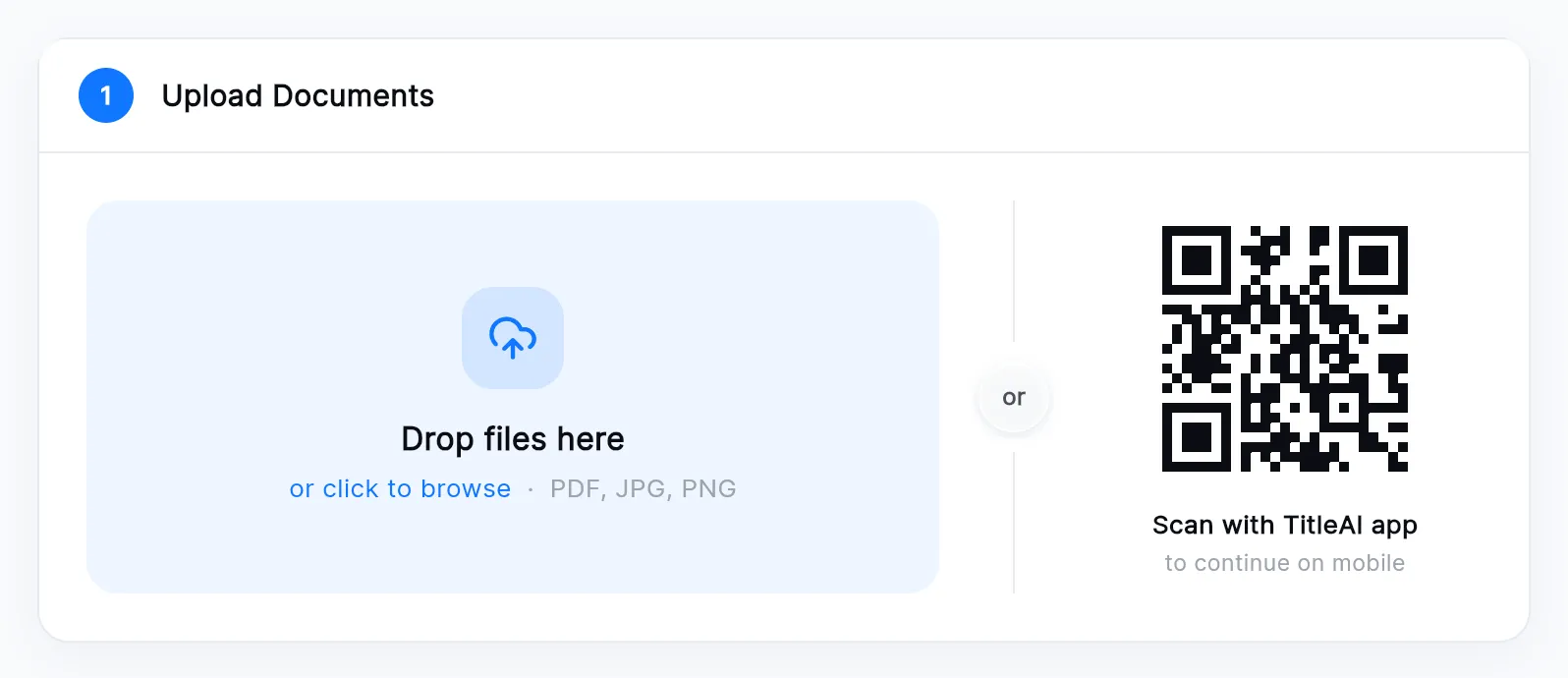
No scanner? Scan the QR code with your phone and photograph the papers there. They arrive on this screen.
-
Press Continue and TitleAI reads the documents. With nothing uploaded the button reads Enter manually and you fill the forms yourself.
-
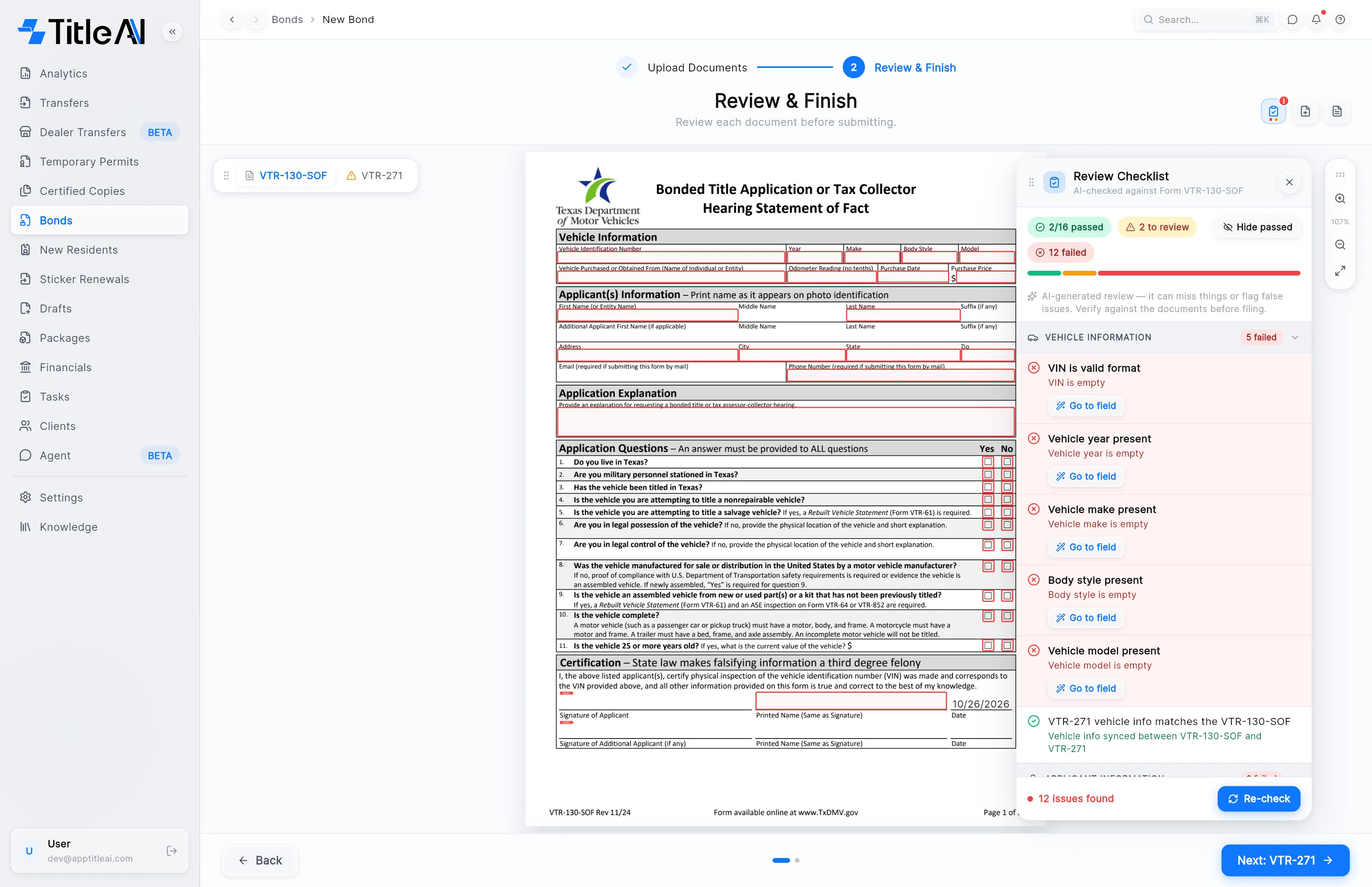
On Review & Finish, check the VTR-130-SOF first, then the VTR-271. Some of the VTR-271’s fields are copied from the VTR-130-SOF. The Review Checklist opens on its own; Go to field takes you to each problem.
-
Press Next: VTR-271, check it, and press Submit. Submit stays off until you have opened both tabs and both forms are valid. The bond opens once it is filed.
Move a bond forward
Section titled “Move a bond forward”Open a bond to see its forms and the phase banner under the header. The banner says what the bond needs next, and its buttons do it.

Mark the bond as filed
Section titled “Mark the bond as filed”-
Press Mark as filed in the banner.
-
Pick the day you filed with TxDMV and press Apply. The phase moves from Filing to Awaiting VTR-130-ND.
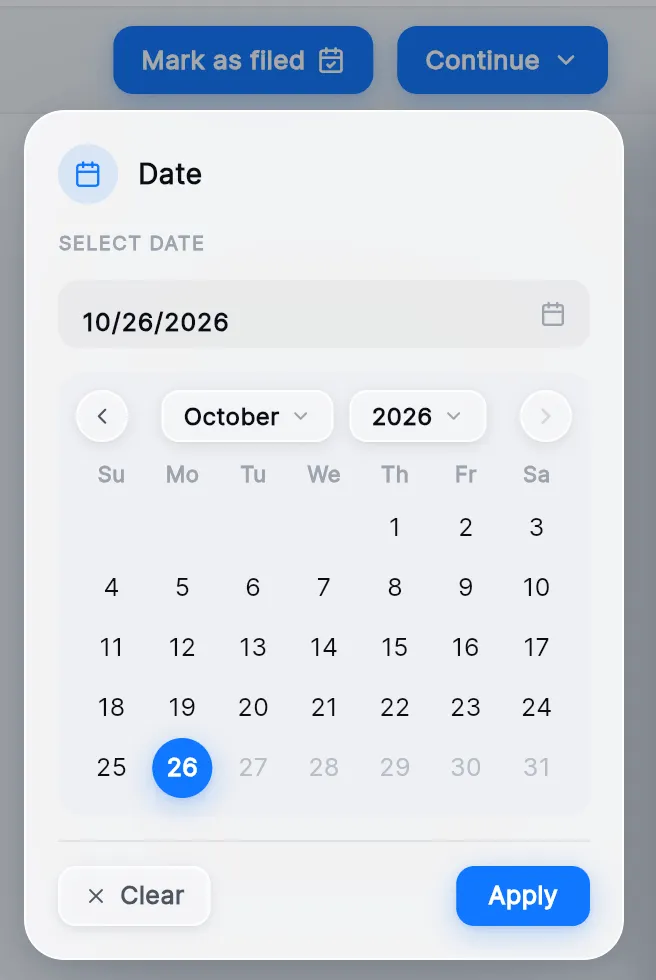
The banner then shows the date as a “Filed …” stamp. Click it to change the date, or clear it to send the bond back to Filing.
Upload a document the bond is waiting for
Section titled “Upload a document the bond is waiting for”-
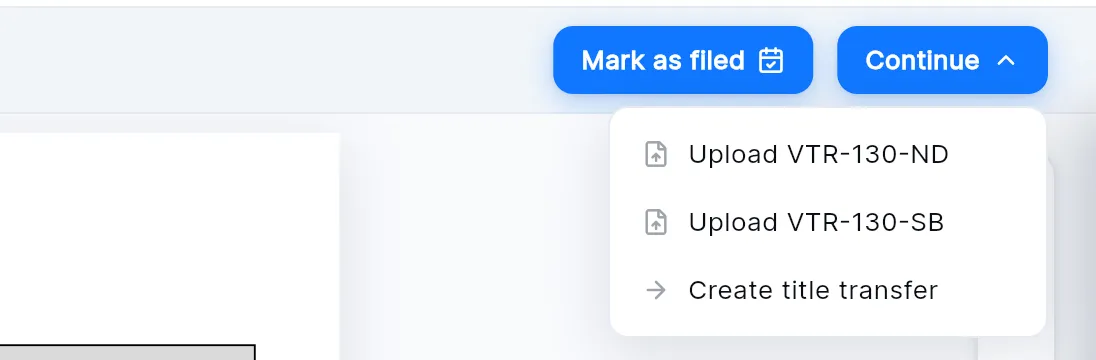
Press Continue in the banner.
-
Choose Upload VTR-130-ND, or Upload VTR-130-SB when that is the one due. A document already on file reads Replace instead.
-
Once the document is read, the phase moves on by itself.
Start the title transfer
Section titled “Start the title transfer”When the phase reads Ready for transfer, press Continue and choose Create title transfer. What the bond already has carries into the transfer, so nothing is uploaded twice. Afterwards the same menu item reads Open Transfer.
The bond screen
Section titled “The bond screen”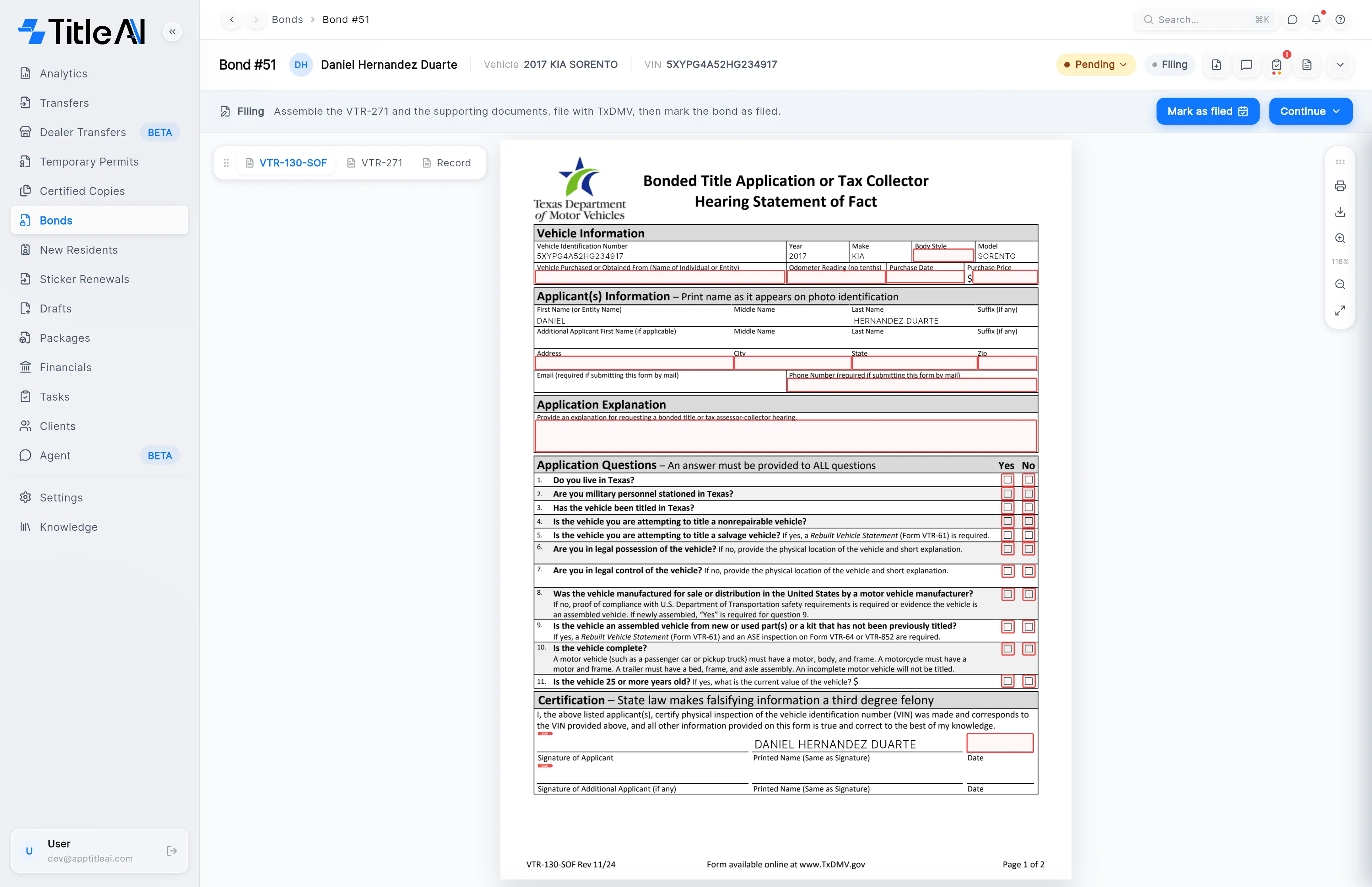
| Control | What it does |
|---|---|
| Status pill | Your status for the bond. Click it to change it. |
| Phase pill | Next to the status. Set by TitleAI; it doesn’t open. |
| VTR-130-SOF tab | The bond’s main form. It locks once the VTR-130-ND is uploaded or the transfer is created: you can still view and print it. |
| VTR-271 tab | The second form. The fields it copies from the VTR-130-SOF lock at the same time. |
| Record tab | The combined PDF, once it has been generated. |
| Header icons | The same as on a transfer: add a supporting document, notes and tasks, the review checklist, and the uploaded documents. |