Financials
Financials in the sidebar holds the money side of the office: the estimates you quote customers before a trámite, and the invoices for the work done. An estimate is where a title transfer usually starts; its invoice is where you record the payment.
Invoices and estimates
Section titled “Invoices and estimates”
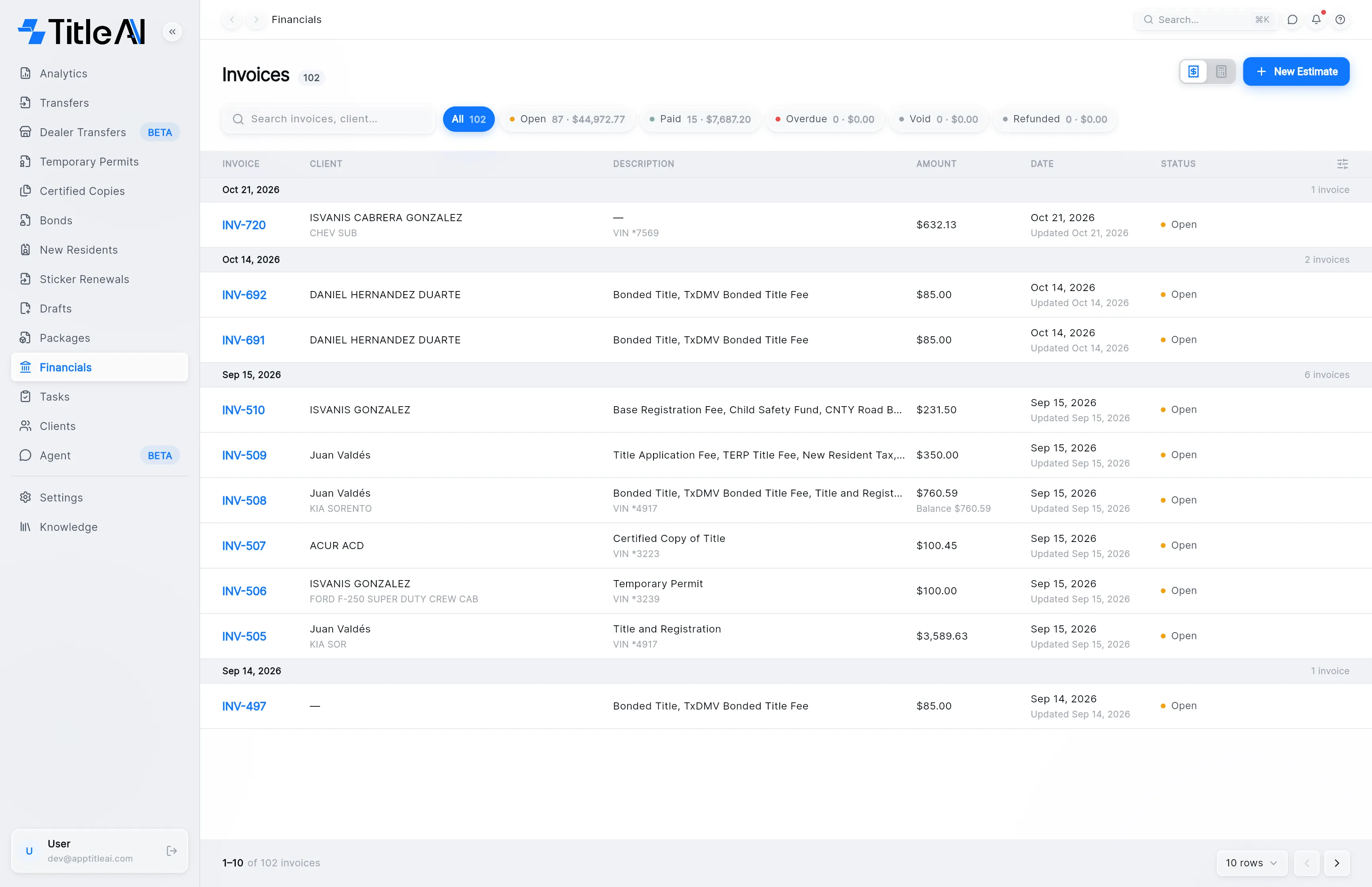
- Invoices / estimates switch: the two icons left of New Estimate. The receipt shows invoices, the calculator shows estimates. The heading says which one you are on.
- Search box: on invoices it matches the invoice number and the client; on estimates, the estimate number and the VIN.
- Status chips: show only that status. On invoices you can turn on more than one. Estimates open on Pending.
- Column settings: the icon at the right end of the table header.
There is no button to create an invoice: invoices come from the trámites themselves.

What the chips and columns mean
Section titled “What the chips and columns mean”| On screen | What it means |
|---|---|
| Open | Invoice not fully paid yet. Amber. |
| Paid | Payments cover the whole amount. TitleAI sets it when the balance reaches $0. Green. |
| Overdue | Unpaid past its date. Red. |
| Void, Refunded | Set by hand on the invoice. Grey. |
| Pending | Estimate given, no transfer started from it yet. Amber. |
| Completed | The estimate’s transfer has been started. Green. |
| Amount | The total. “Balance $…” underneath means part of it is still owed. On estimates, the fees and services that make up the total. |
| Description | The services on the invoice, with the last digits of the VIN. |
| Client “N/A” | The estimate has no client attached yet. |
Create an estimate
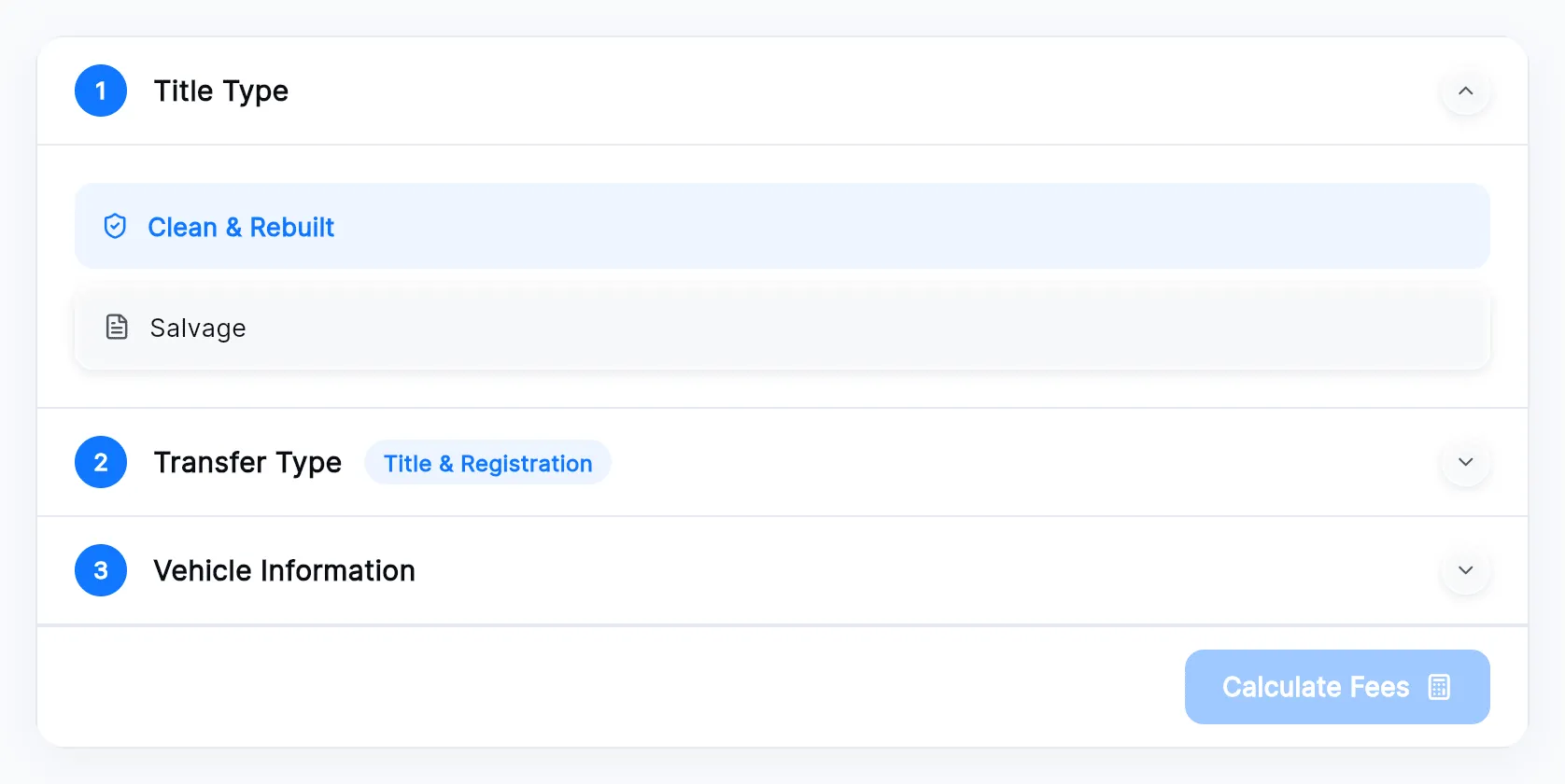
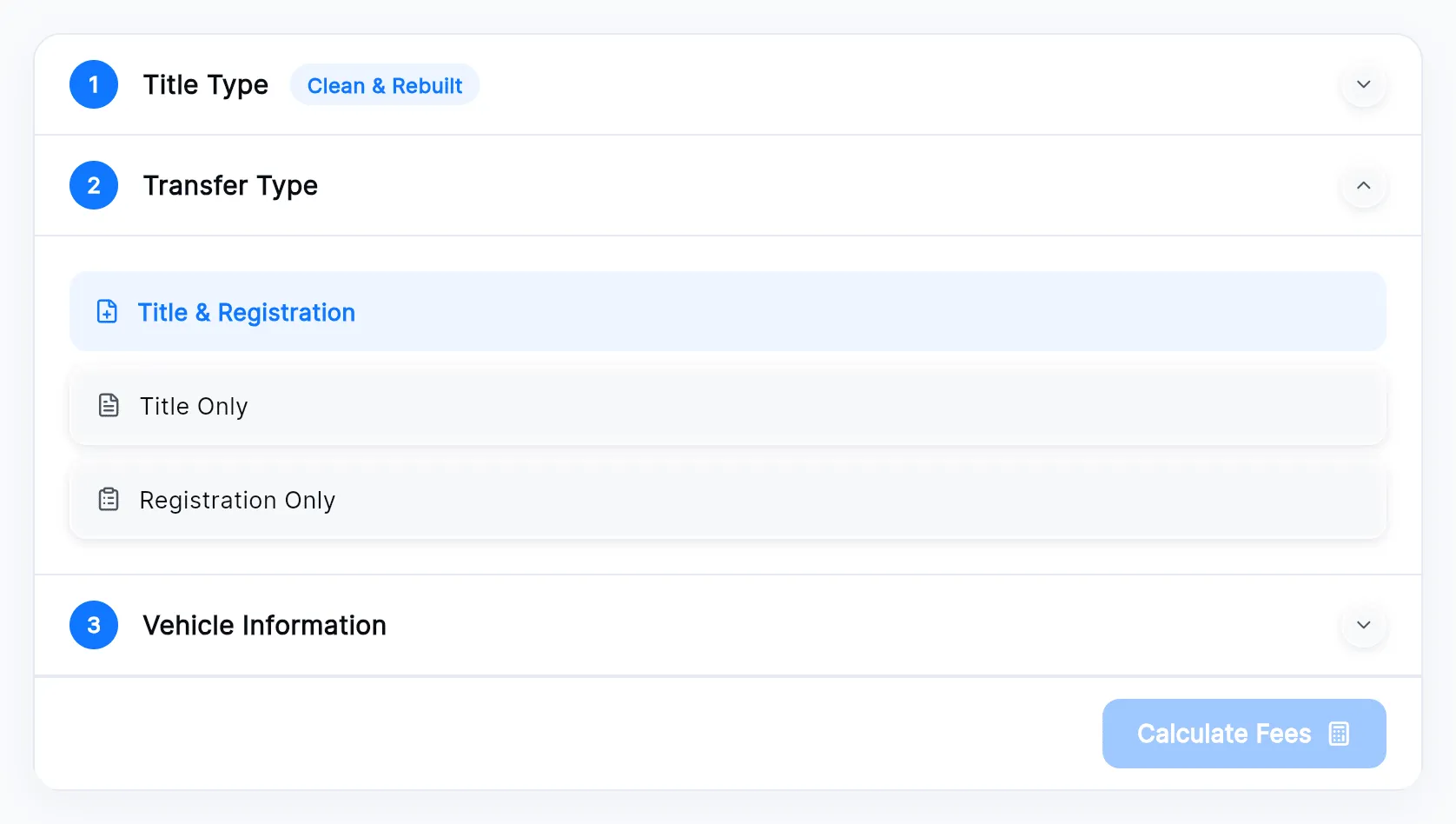
Section titled “Create an estimate”The new estimate screen has three numbered sections. Each closes once you choose, and shows your choice beside its title.
-
On Financials, press New Estimate at the top right.
-
Under Title Type, choose Clean & Rebuilt or Salvage.
-
Under Transfer Type, choose Title & Registration, Title Only or Registration Only. A salvage title can’t be Registration Only.
-
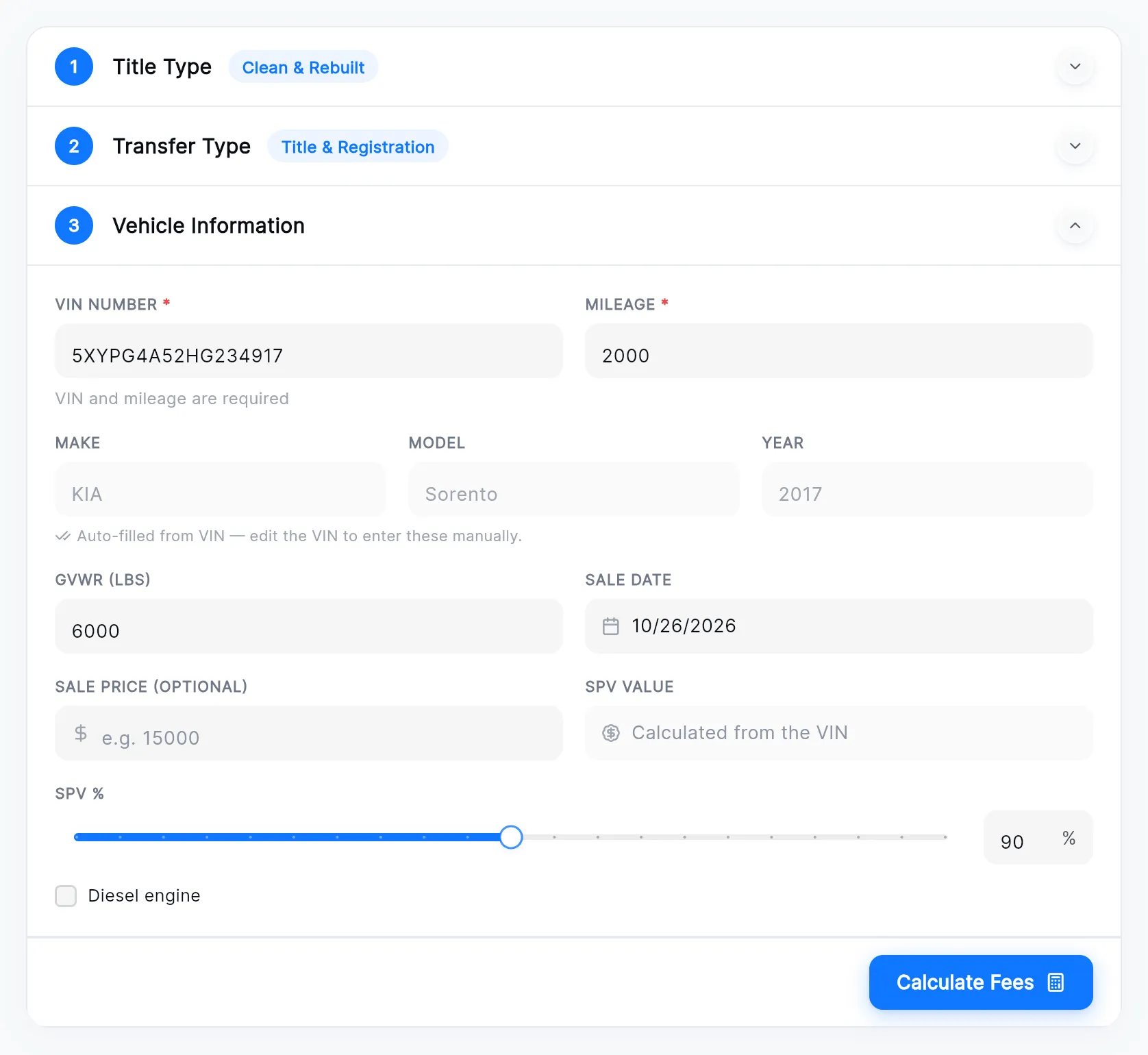
Under Vehicle Information, type the VIN number and the Mileage. TitleAI fills the make, model and year from the VIN; if it can’t, type them yourself. Add the sale price if you have it, and tick Diesel engine if it applies.
-
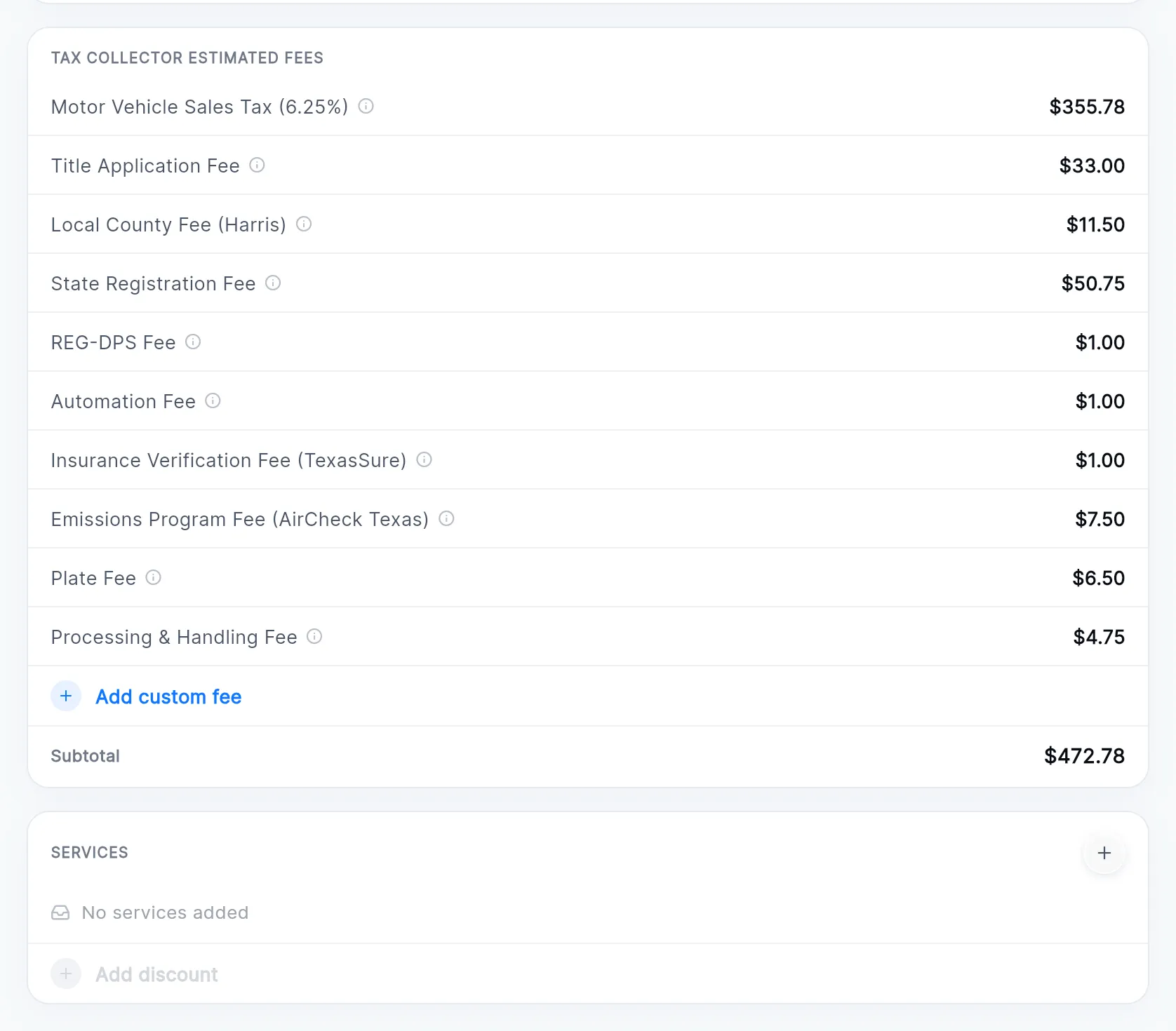
Press Calculate Fees. It stays off until the VIN and mileage are in. The vehicle summary, the tax collector’s fees and the services appear below, and an Estimate total card in the corner keeps the running total.
-
Under Services, press + to add your agency’s services. Change a quantity with − and +, and use Add discount for a discount on the services. Add custom fee adds a fee the calculation left out.
-
Press Create Estimate at the bottom right. The new estimate opens.
Start a transfer from an estimate
Section titled “Start a transfer from an estimate”Open the estimate and press Start Transfer in its header. A new title transfer opens with the estimate’s title and transfer type already chosen; it carries on as in Create a transfer. The estimate then reads Completed.
The estimate screen
Section titled “The estimate screen”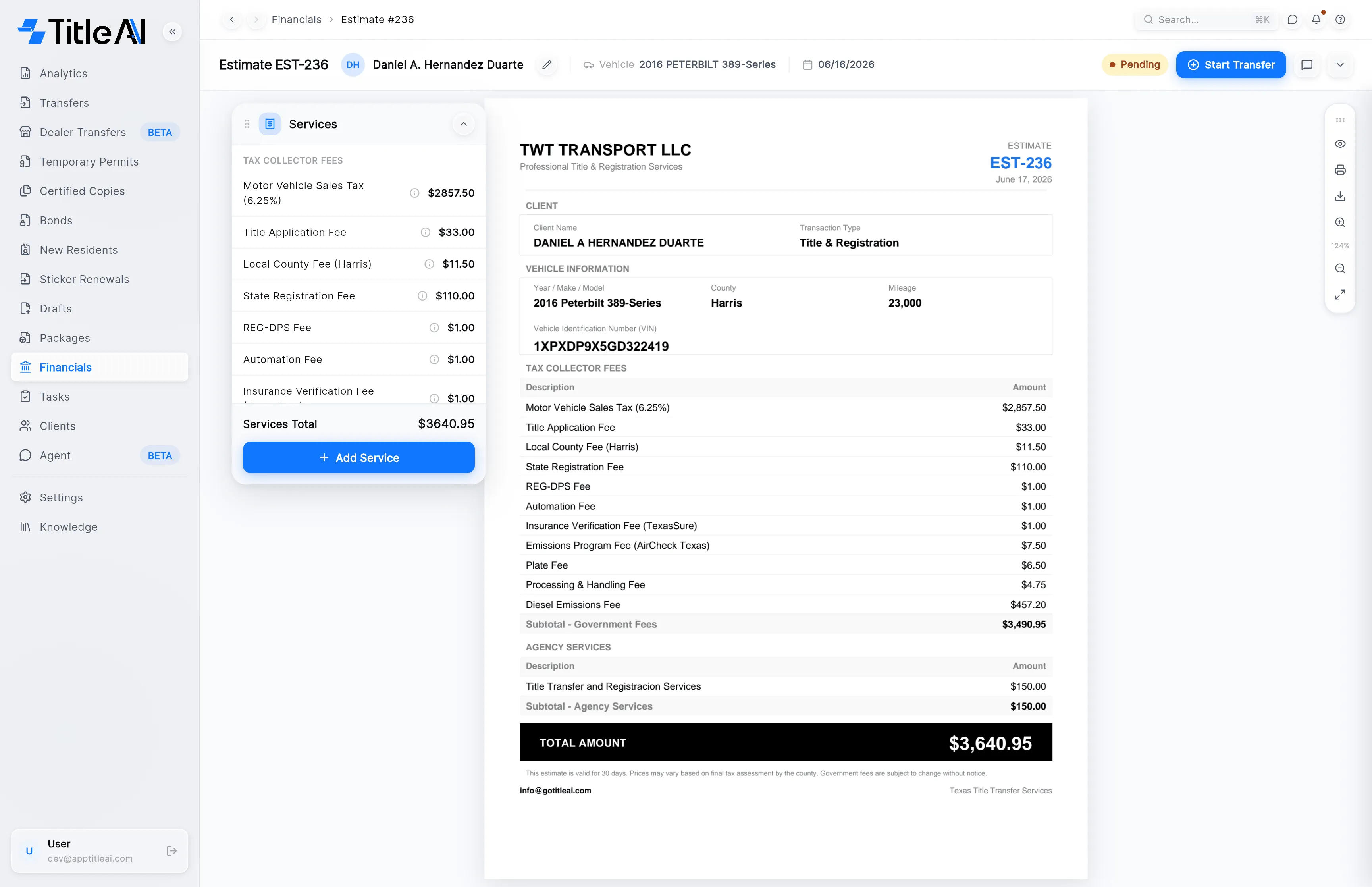

| Control | What it does |
|---|---|
| Client name and pencil | Change client. With no client yet, the button reads Add Client. |
| Status pill | Pending or Completed. It changes on its own when the transfer starts; you can’t click it. |
| Start Transfer | Starts the title transfer from this estimate. Gone once the estimate is Completed. |
| Speech bubble | Notes & tasks. See Notes & tasks. |
| Chevron | Show details: vehicle, amounts, client and quick links. |
| Services card | The fees and services on the estimate, with Add Service. Drag it by its handle, or fold it with its arrow. |
| Right-hand rail | Hide the internal fees on the PDF (the eye), print, download and zoom. |
Add or remove services
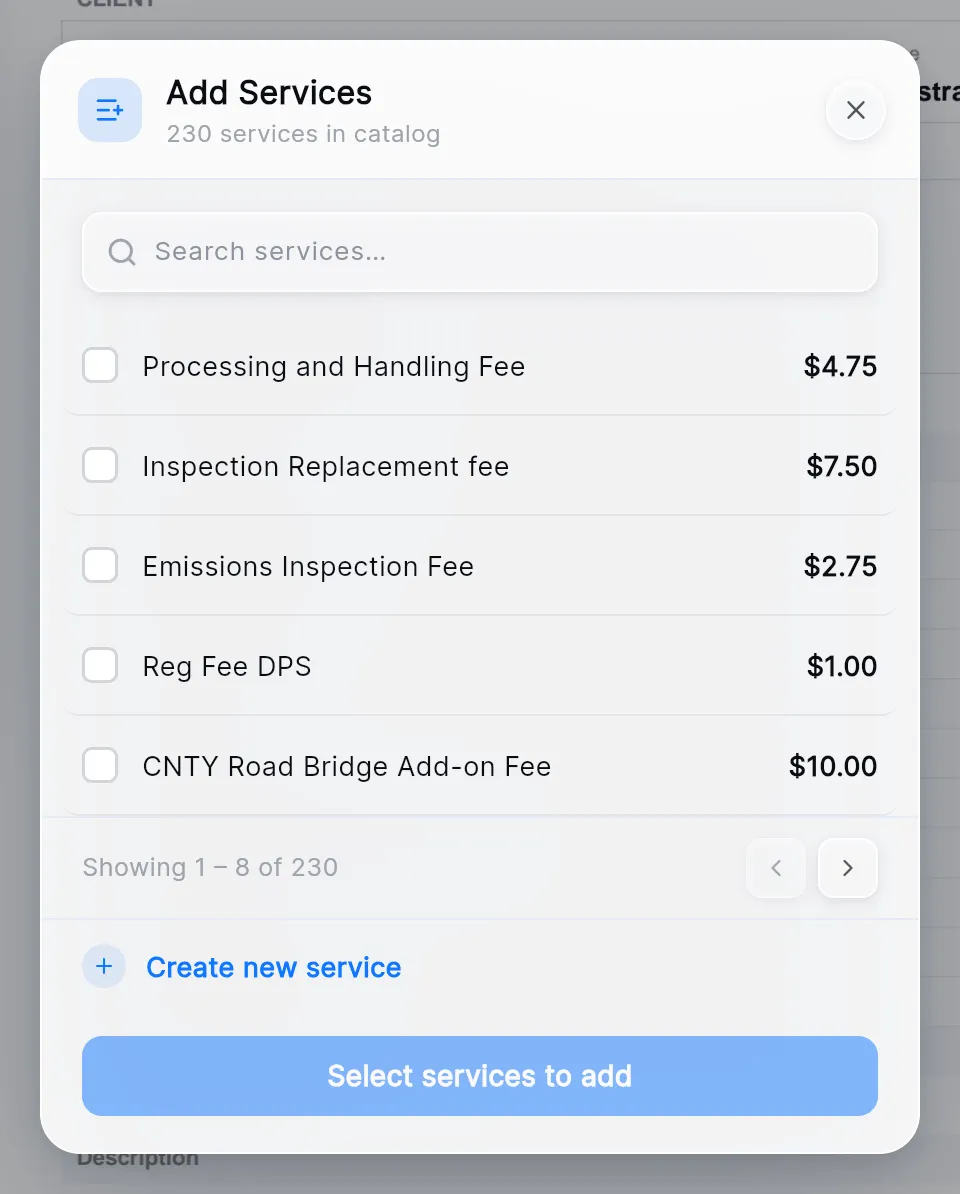
Section titled “Add or remove services”Press Add Service on the Services card, tick the services and press the button at the bottom (“Add 2 services”). Create new service adds one that isn’t in your list yet. The PDF updates straight away.
Below the services, Add fee adds a government fee and Add discount a discount. A completed estimate can’t be changed.
See the details
Section titled “See the details”Click the chevron. You get the vehicle, the taxable amount and the totals, the client’s contact details, and View Client Profile.

The invoice screen
Section titled “The invoice screen”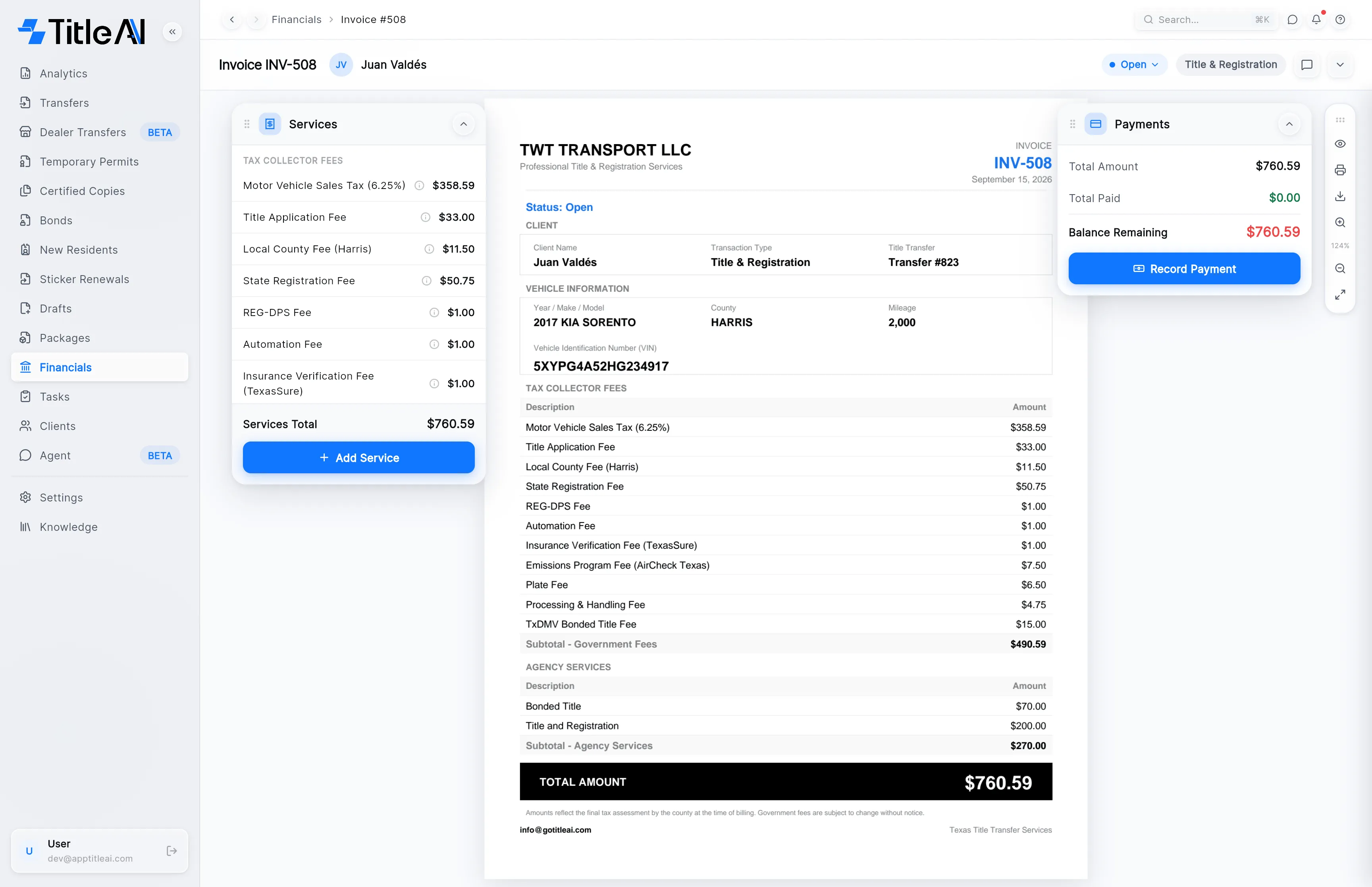
| Control | What it does |
|---|---|
| Status pill | Open, Paid or Overdue follow the payments. Click it to mark the invoice Void or Refunded, or to reopen it. |
| Transfer type pill | The kind of transfer the invoice is for. |
| Speech bubble | Notes & tasks. |
| Chevron | Show details: client, vehicle, invoice summary, and Quick Links to the client and the transfer or permit. |
| Services card | The fees and services, with Add Service and Add fee. |
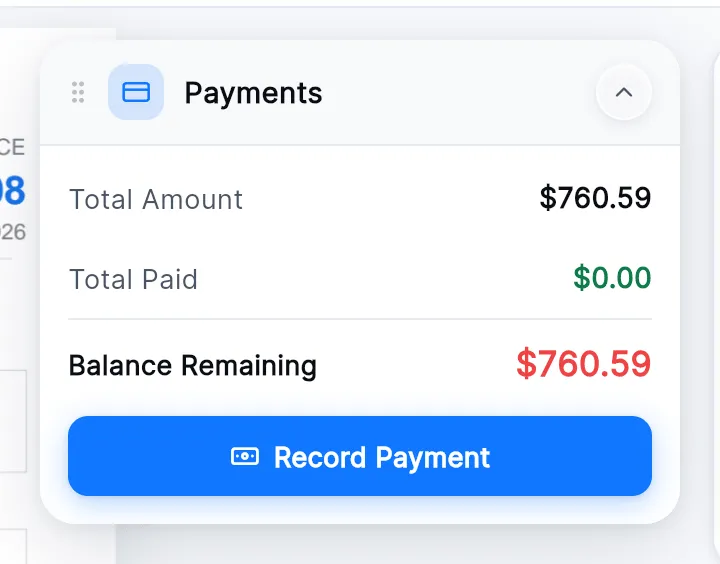
| Payments card | What was charged, what has been paid, and what is left, with Record Payment and the payment history. |
| Right-hand rail | Hide the internal fees on the PDF, print, download and zoom. |
Record a payment
Section titled “Record a payment”-
On the Payments card, press Record Payment.
-
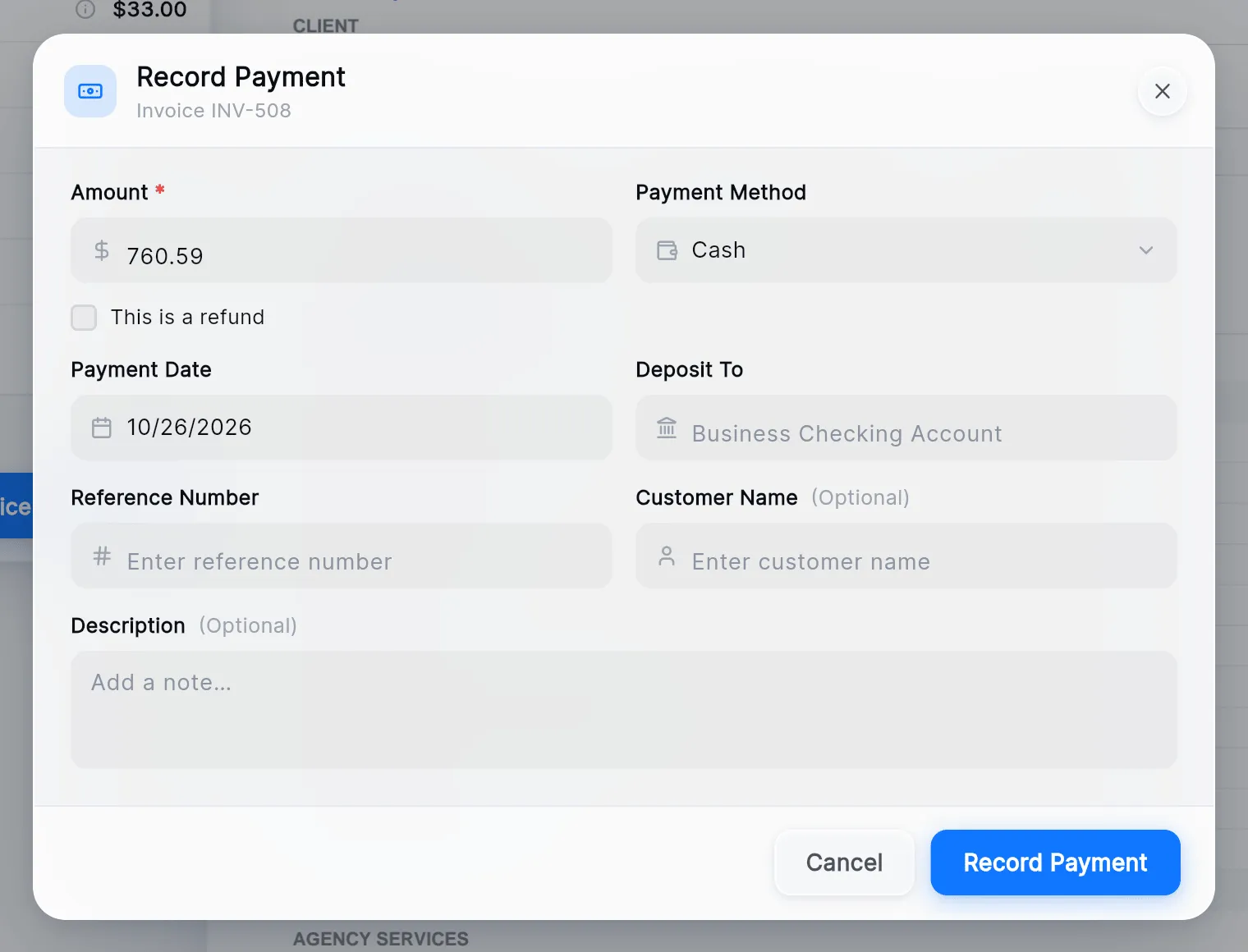
The Amount comes filled with the balance. Change it for a partial payment, and choose the Payment Method: Cash, Check, Credit Card, ACH / Bank Transfer or Wire.
-
Check the Payment Date, and add a Reference Number (the check or transaction number) if there is one.
-
Press Record Payment. The payment goes into the history and the balance drops. At $0 the invoice turns Paid.
To give money back, record a payment with This is a refund ticked.
Void an invoice
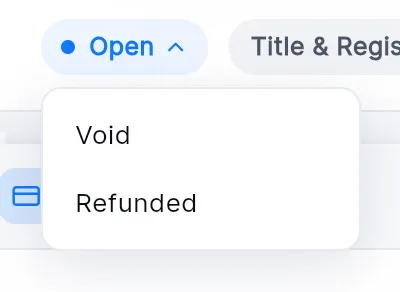
Section titled “Void an invoice”Click the status pill and choose Void or Refunded. From either, the same menu offers Reopen.