
Clients
Clients in the sidebar lists everyone the office has worked for. Opening a client shows their details and every trámite, invoice and estimate in their name, so one place answers “what have we done for this person?”
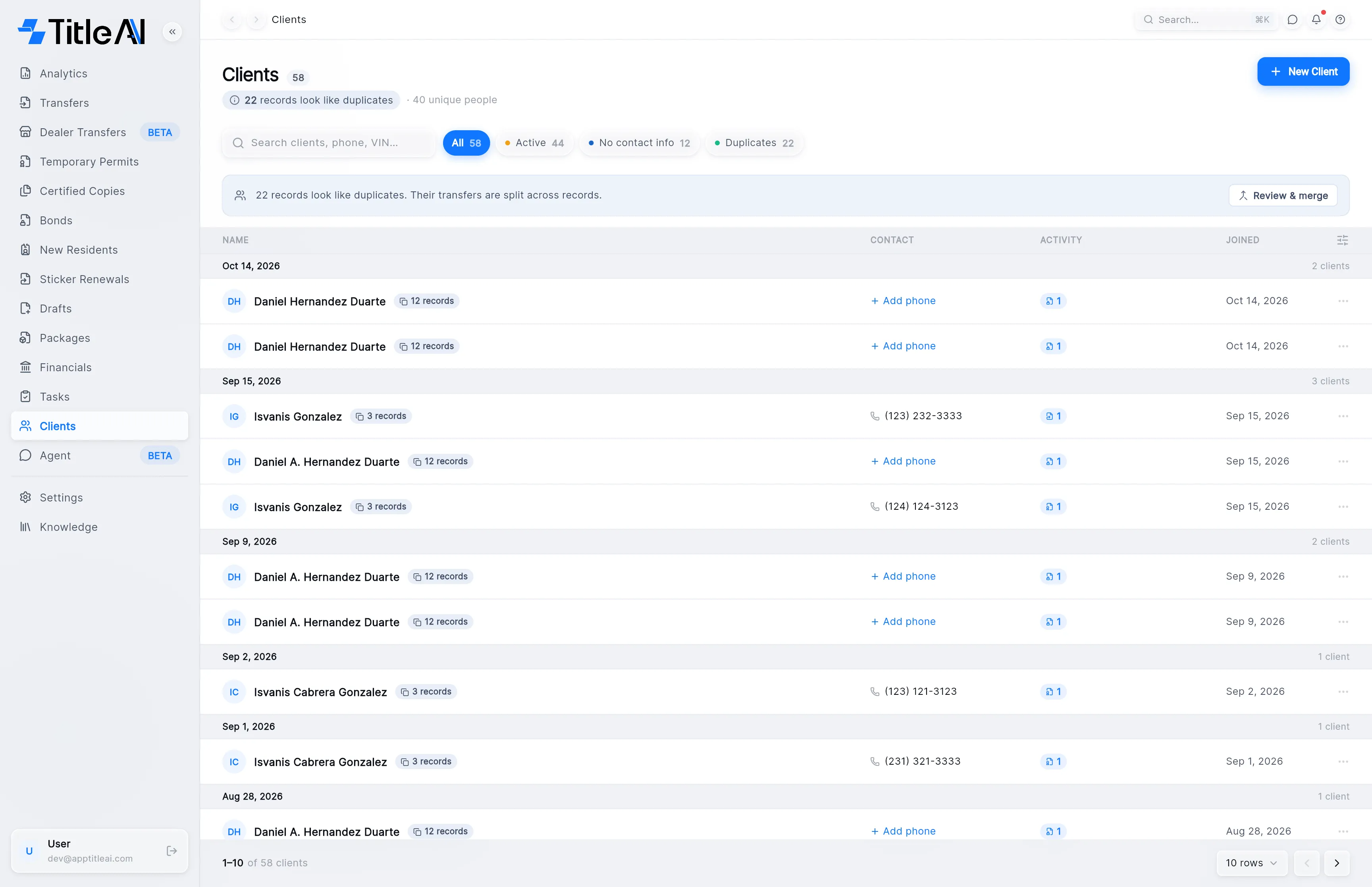
The clients list
Section titled “The clients list”
- Search box: matches the name, the phone and the VIN of the client’s vehicles.
- Chips: Active, No contact info (no phone or email) and Duplicates (records that look like the same person). Each has a count.
- Review & merge: on the banner that appears when duplicates exist. See below.
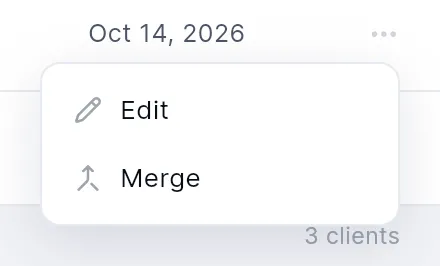
- ⋯ at the end of a row: Edit, and Merge when the client has duplicates.
What the columns mean
Section titled “What the columns mean”| On screen | What it means |
|---|---|
| Name | The client. “12 records” next to it means there are that many records for what looks like the same person. |
| Contact | Phone and email. Add phone opens Edit Client to add one. |
| Activity | One small pill per kind of trámite, with a count. Click a pill to see those trámites for this client. |
| Joined | When the client was added. |
Add a client
Section titled “Add a client”-
Press New Client at the top right.
-
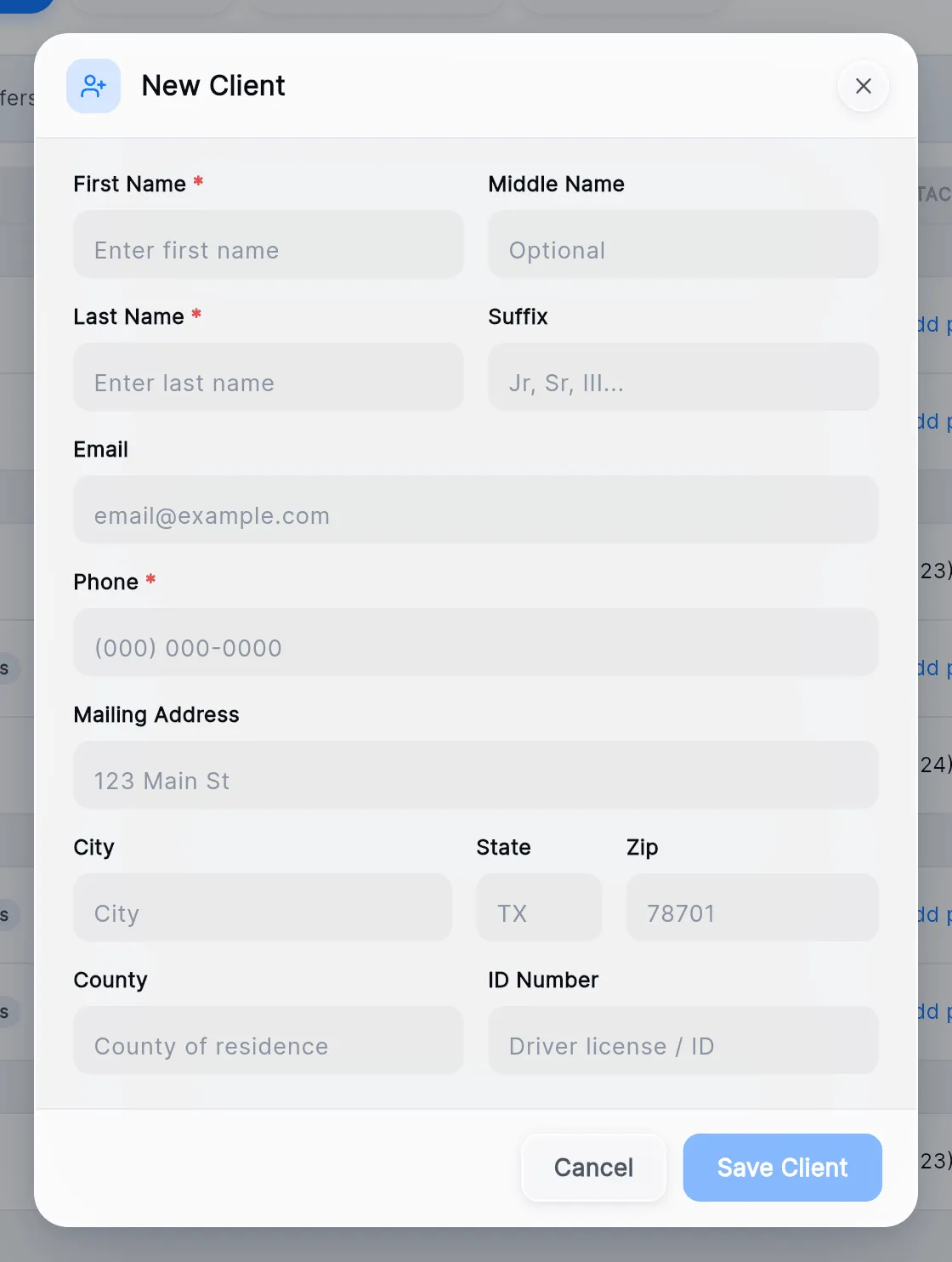
Fill in First Name, Last Name and Phone; they are required. The rest (email, mailing address, county, ID number) can wait.
-
Press Save Client.
To change a client later, use Edit in the row’s ⋯ menu, or the pencil on the client screen.
Merge duplicate clients
Section titled “Merge duplicate clients”The same customer can end up as several records, each holding part of their trámites. Merging puts them back together.
-
Press Review & merge on the banner, or Merge in a client’s ⋯ menu.
-
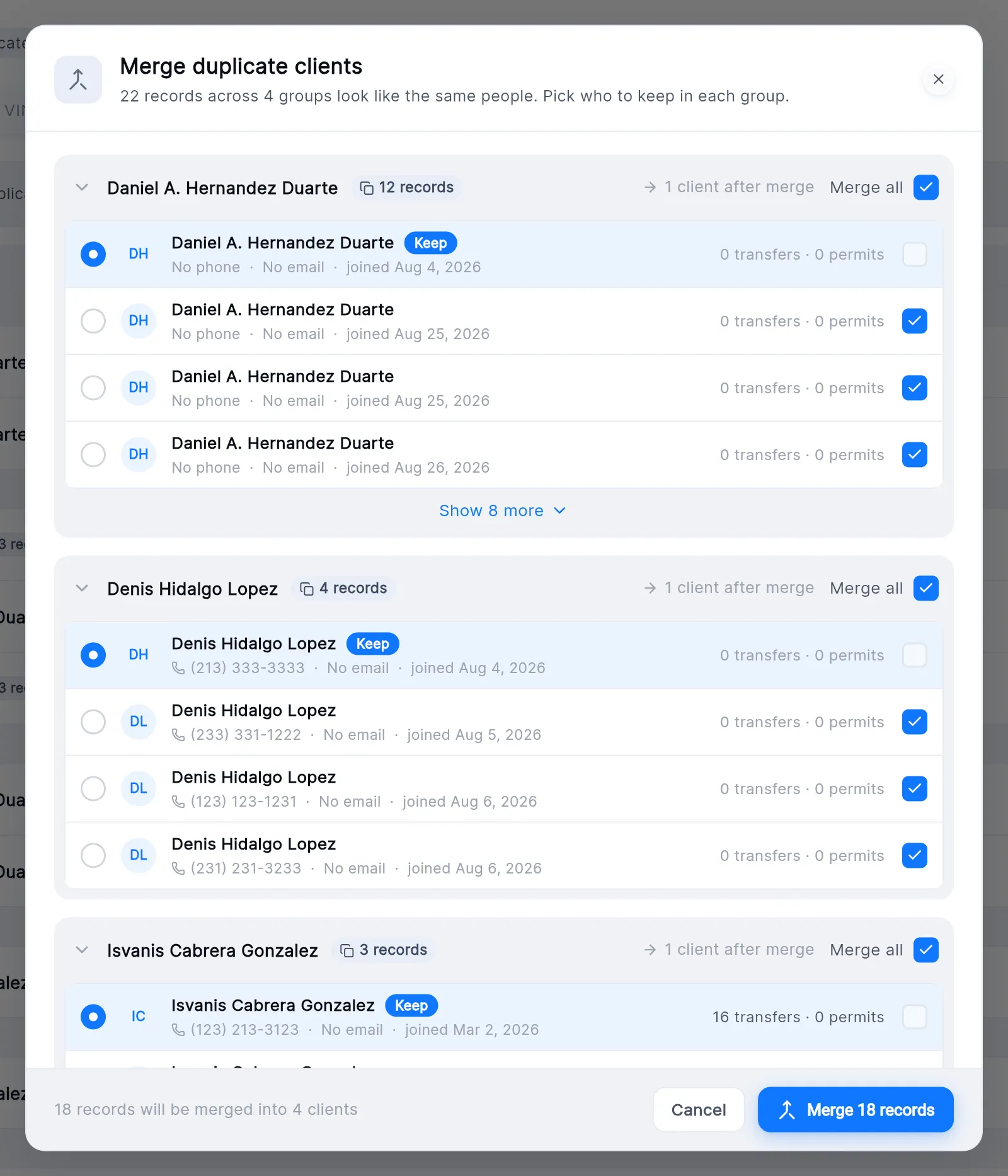
Each group is one person. Keep marks the record that stays; the ticked records are merged into it. Untick any that aren’t the same person.
-
Press Merge with the count and confirm.
The client screen
Section titled “The client screen”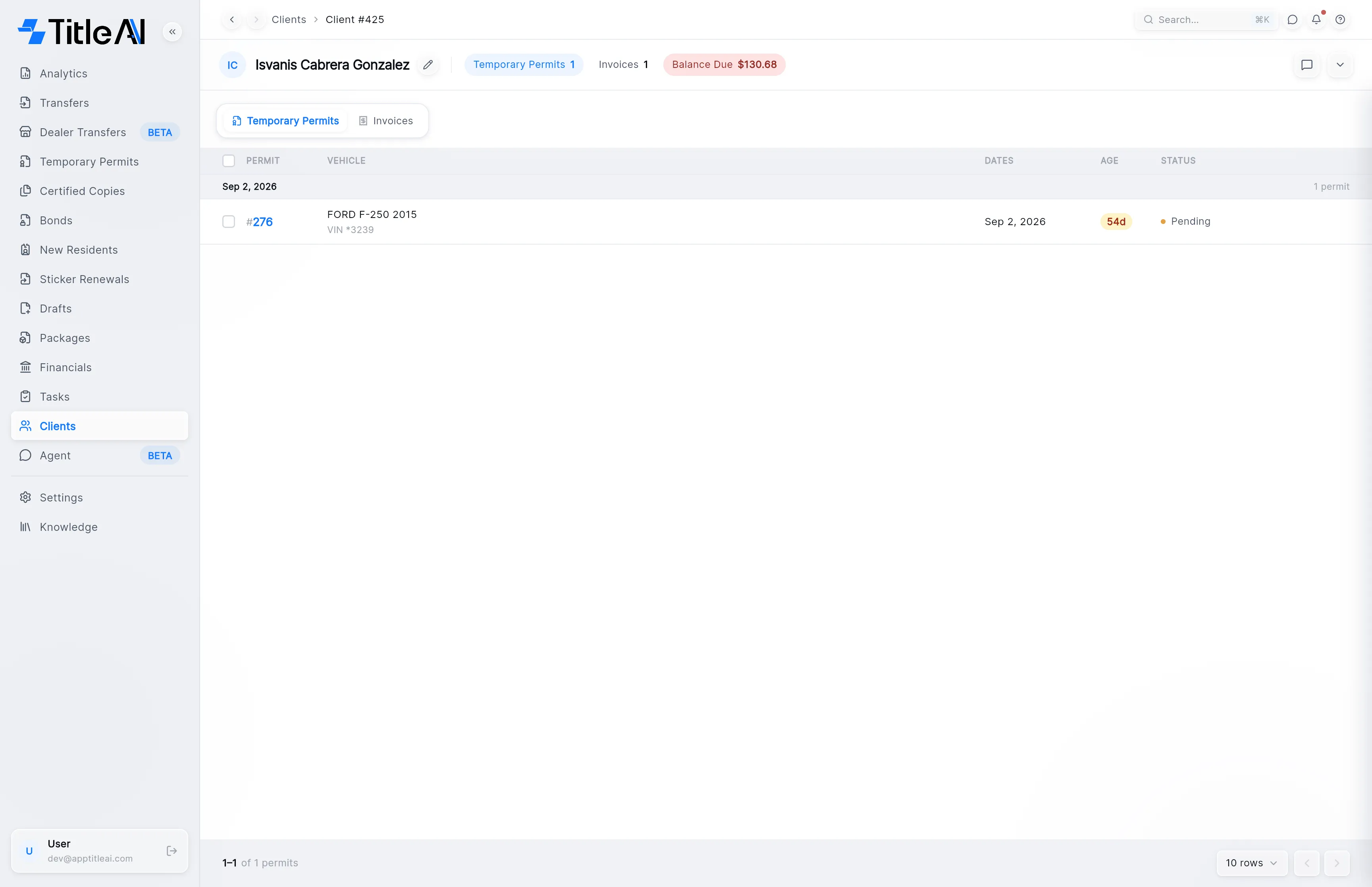
| Control | What it does |
|---|---|
| Pencil | Edit client: change the name, contact details, address or ID number. |
| Count pills | One per kind of record the client has (Transfers, Temporary Permits, Invoices, Estimates…). Click one to show it below. |
| Balance Due | What the client still owes. Only shown when it is more than $0. |
| Tabs | The same kinds of record as the pills. Click a row to open it. |
| Speech bubble | Notes & tasks for the client. See Notes & tasks. |
| Chevron | Show details: the client’s identity, contact, address and ID number. |
See the client’s details
Section titled “See the client’s details”Click the chevron at the right of the header.
