
Sticker Renewals
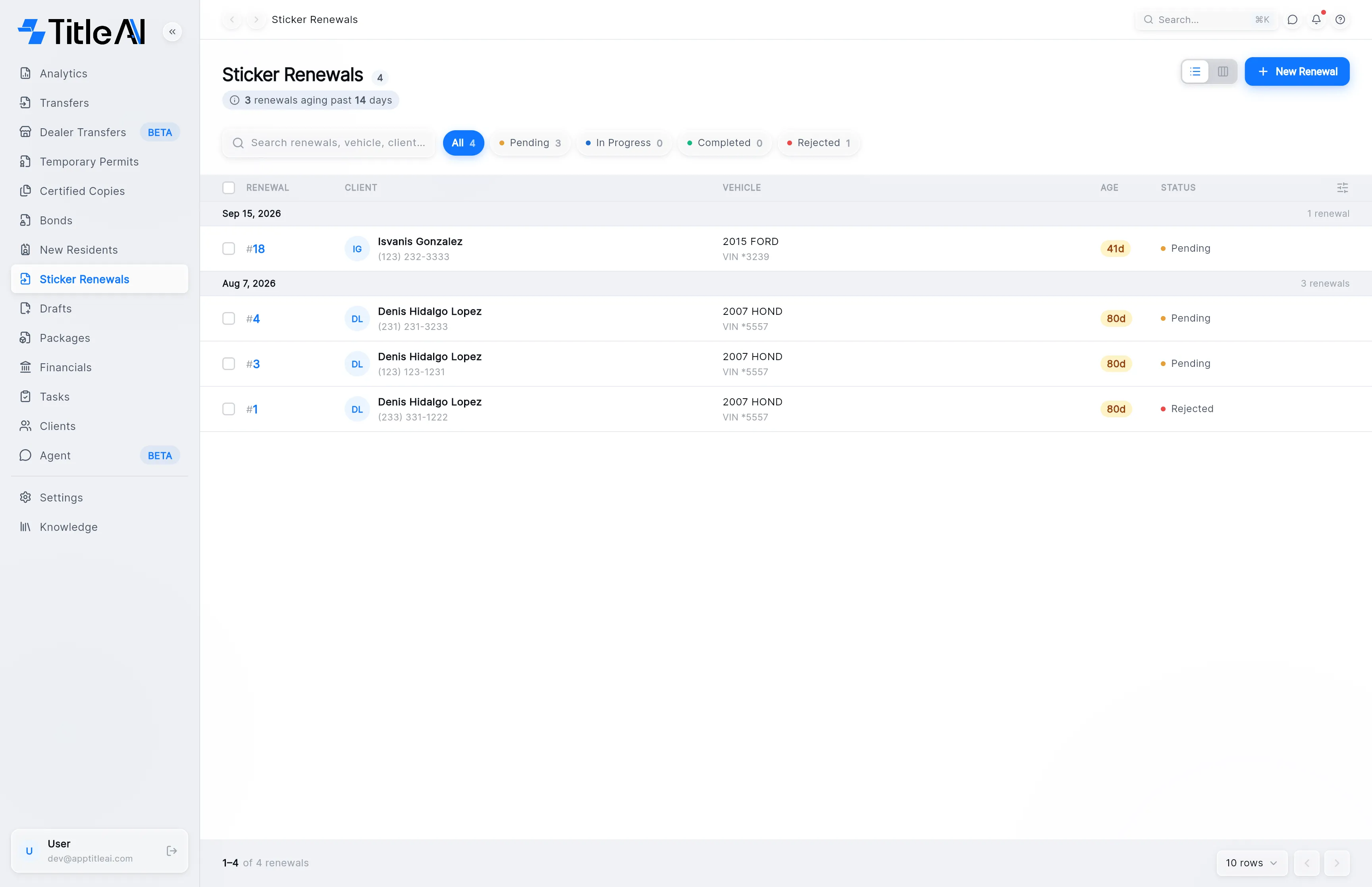
Sticker Renewals in the sidebar holds every registration sticker renewal in the office. A renewal has one form, the TS-12, read from the customer’s insurance, inspection report and ID. The list shows what stage each renewal is at and which ones have been waiting too long.
The renewals list
Section titled “The renewals list”
- Search box: matches the renewal number, the vehicle and the client’s name.
- Status chips: show only the renewals in that status. Each carries a count, and you can turn on more than one at once.
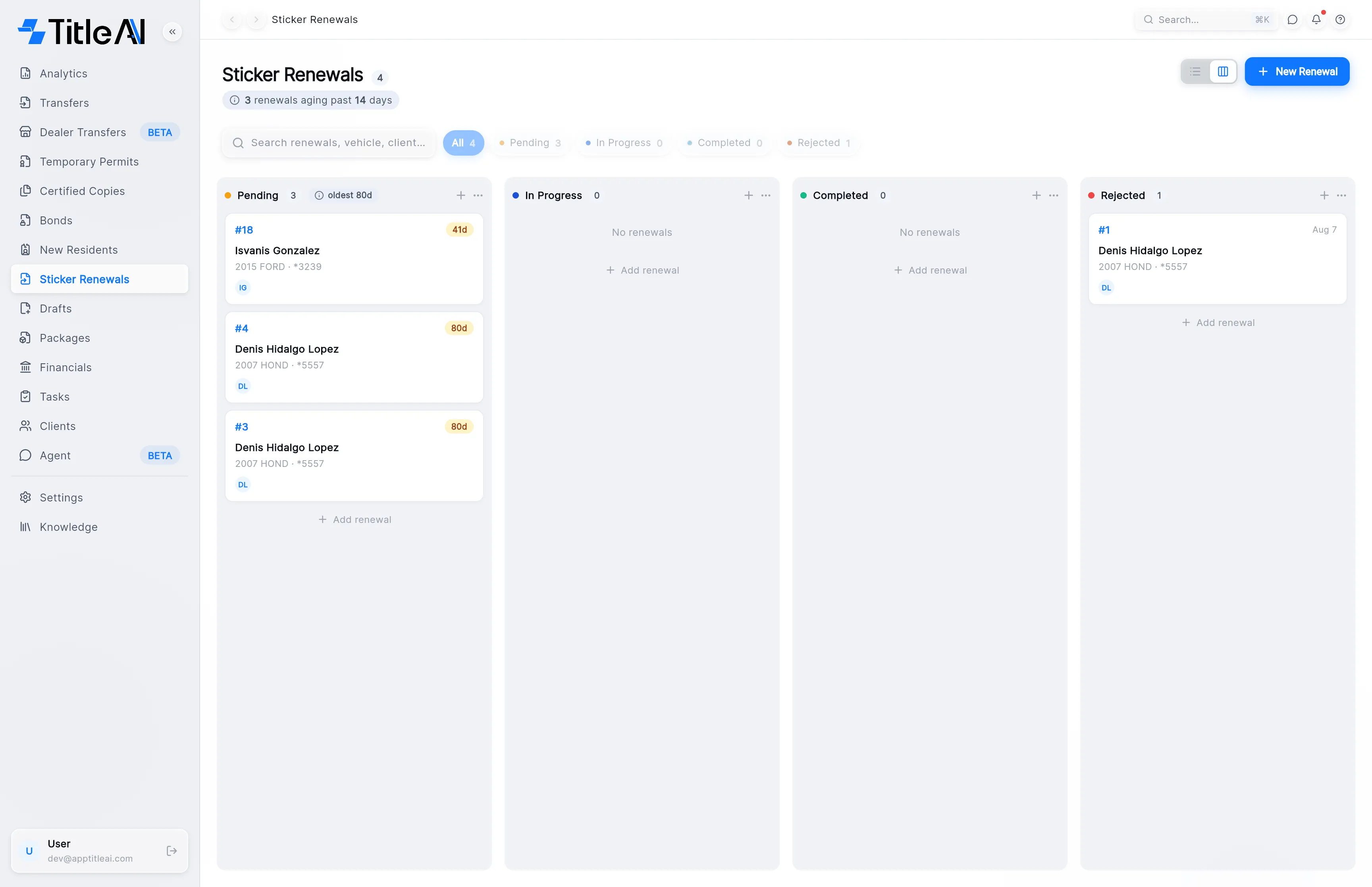
- List / board switch: the two icons left of New Renewal. The board shows one column per status, and you move a renewal by dragging its card.
- Column settings: the icon at the right end of the table header. Choose which columns you see and in what order.
What the chips and columns mean
Section titled “What the chips and columns mean”| On screen | What it means |
|---|---|
| Pending | Created, nothing filed yet. Amber. |
| In Progress | Filed with the county and waiting on them. Blue. |
| Completed | Done and the trámite closed. Green. |
| Rejected | The county sent it back. Red. Open it to see why, fix it and refile. |
| Renewal | The renewal number. |
| Vehicle | Year and make from the TS-12, with the last four of the VIN underneath. “N/A” means the TS-12 has no vehicle yet. |
| Age | Whole days since the renewal was created, not since you last touched it. |
| aging past 14 days | The line under the heading. How many renewals are older than 14 days. |
| oldest | On the board, at the top of a column: the age of the oldest renewal in it. |
| Speech bubble and clipboard | On the right of a row: how many notes and how many open tasks the renewal has. |
Create a sticker renewal
Section titled “Create a sticker renewal”The wizard has two steps: Upload Documents and Review & Finish. There is no setup step, because a renewal only ever renews the registration.
-
On the Sticker Renewals list, press New Renewal at the top right. The wizard opens on Upload Documents.
-
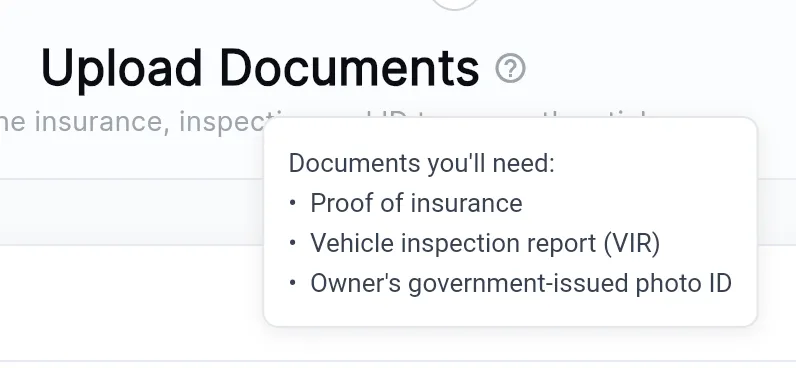
Drop the customer’s papers onto the box, or click it to browse. It takes PDF, JPG and PNG. The ? next to the title lists what to bring.
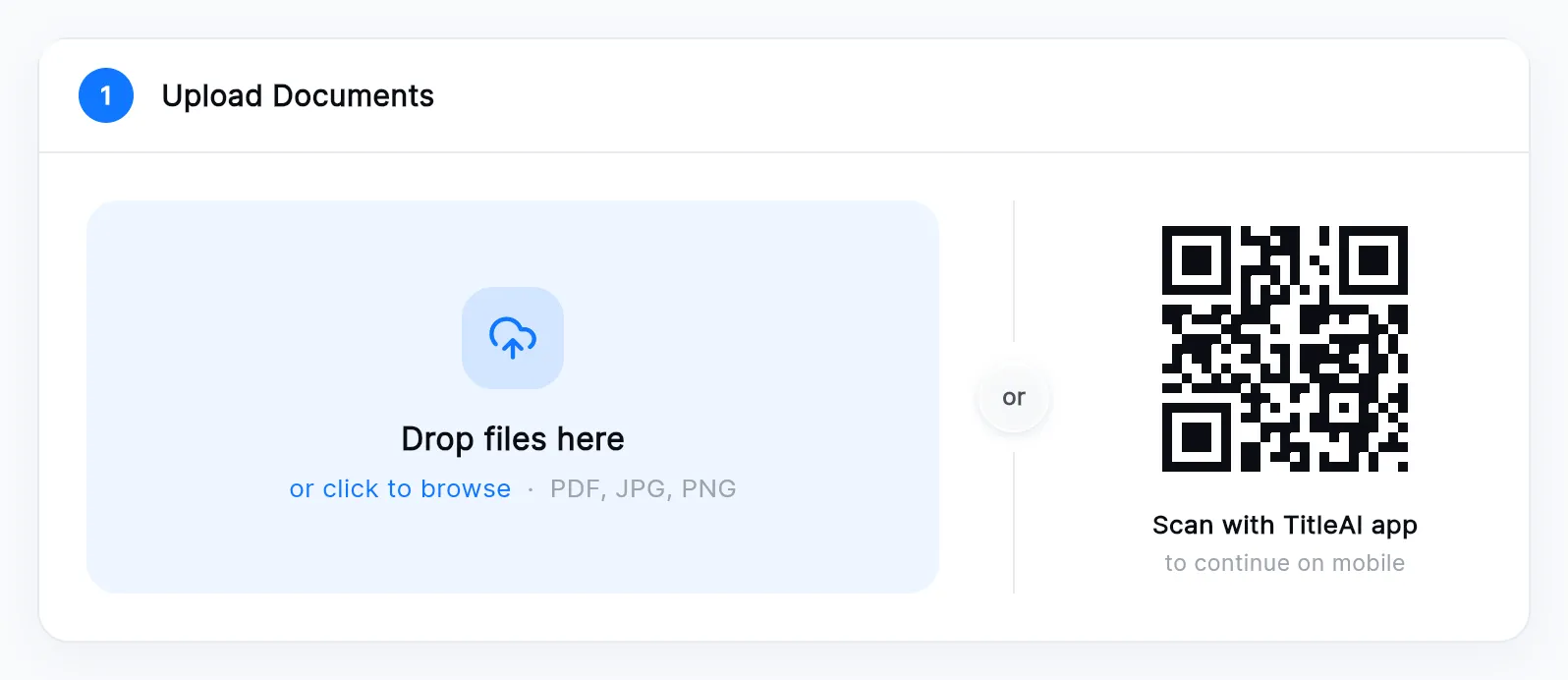
No scanner? Scan the QR code with your phone and photograph the papers there. They arrive on this screen. Keep the window open while you do it.
-
Press Continue. TitleAI reads the documents and fills the TS-12. With nothing uploaded, the button reads Enter manually and you fill the form yourself. Cancel at the bottom left leaves the wizard.
-
On Review & Finish, check the TS-12 against the papers in your hand. It is the only tab at the top left.
-
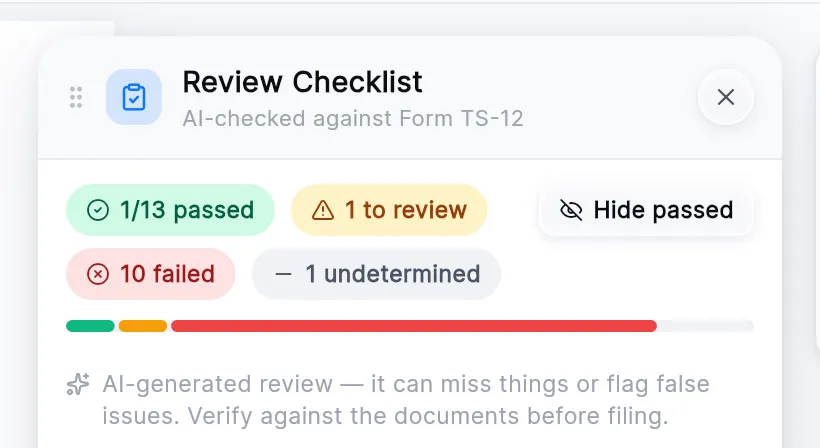
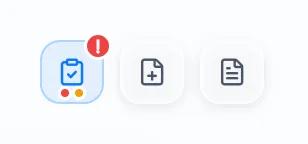
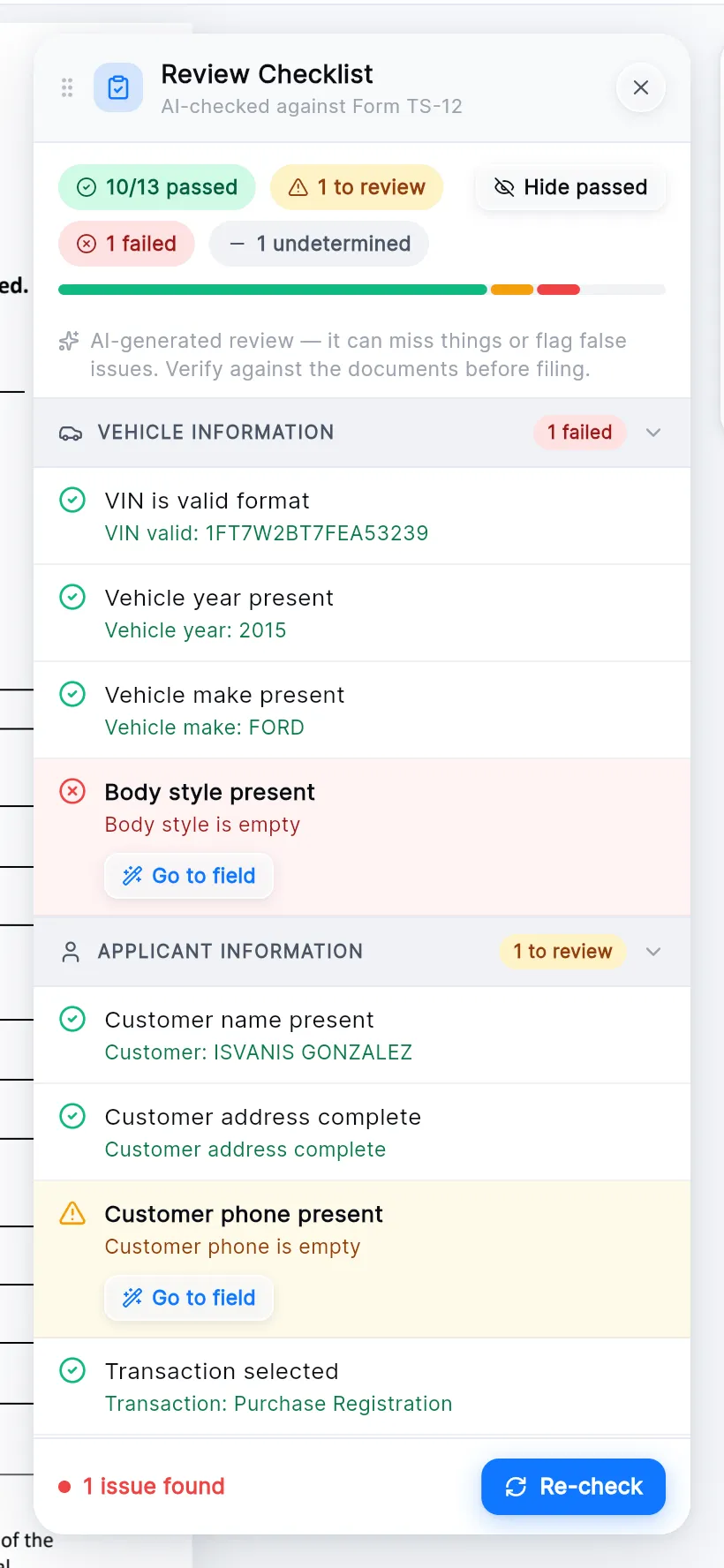
Read the Review Checklist. It opens on its own and counts what passed, what to review and what failed. Go to field takes you to each problem. The icons at the top right reopen it, add a supporting document and show the uploaded documents.
-
Press Submit at the bottom right. With one form there is no “Next” button: Submit is there from the start and stays off until the form is valid. The renewal opens once it is created.

Find the renewals that are falling behind
Section titled “Find the renewals that are falling behind”-
Read the line under the Sticker Renewals heading. It says how many renewals are older than 14 days.
-
Turn on the Pending or In Progress chip to see only what is still open.
-
Read down the Age column. It counts from the day the renewal was created, so the biggest numbers are the ones to chase.
Look up one customer’s renewal
Section titled “Look up one customer’s renewal”-
Type into the search box. The renewal number, the vehicle or the client’s name all work. If a status chip is on, turn it off first so the search covers everything.
-
Click the row to open the renewal.
The renewal screen
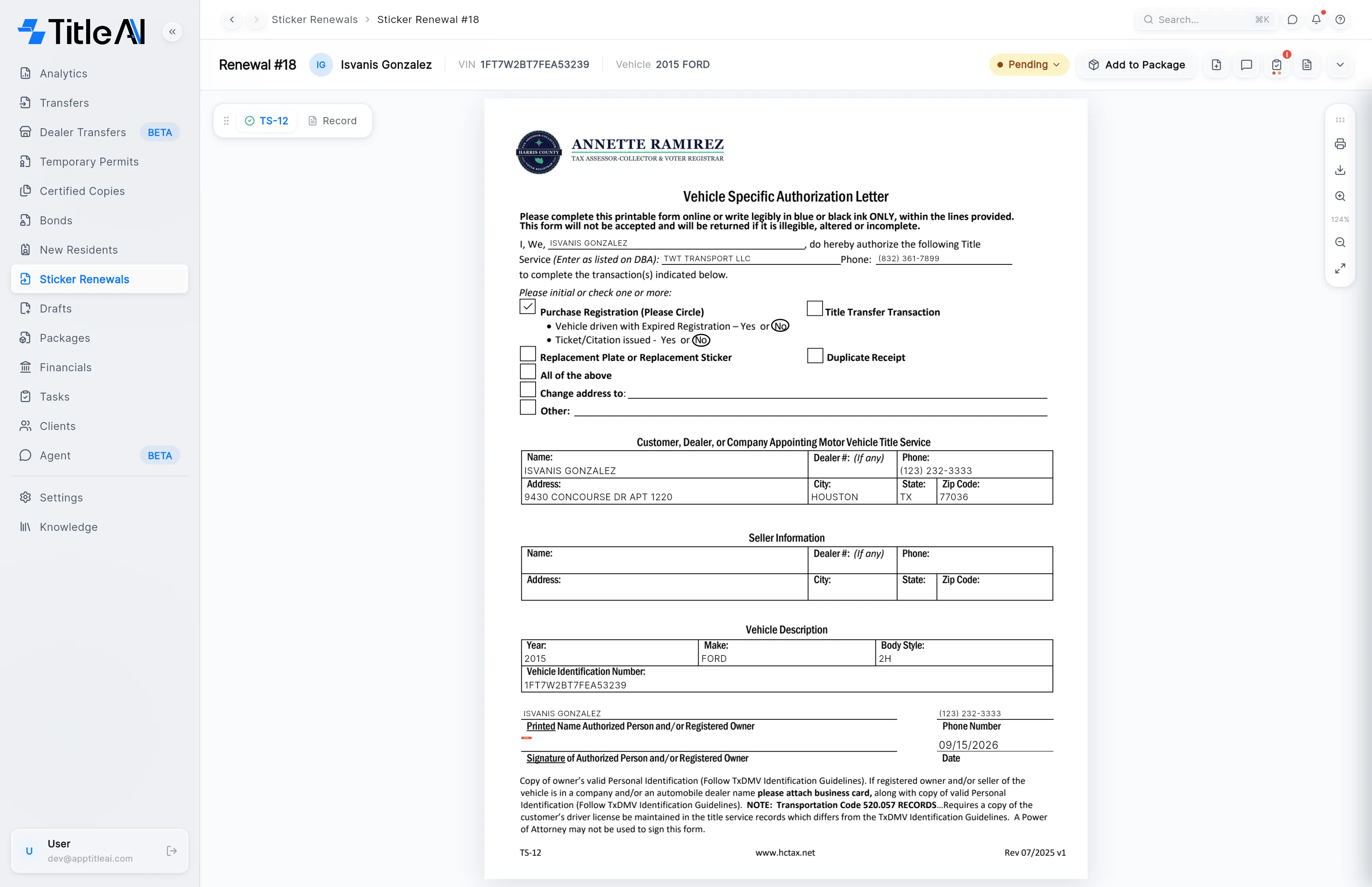
Section titled “The renewal screen”Opening a renewal shows the TS-12 in the middle, its tab at the top left, and its tools across the top.

| Control | What it does |
|---|---|
| TS-12 tab | The renewal’s form. A green check means it is complete. |
| Record tab | The finished record PDF, once it exists. |
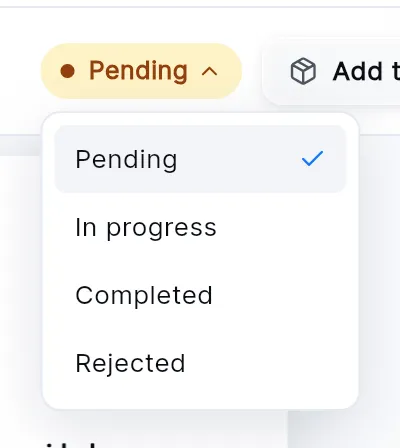
| Status pill | Shows Pending, In Progress, Completed or Rejected. Click it to change the status. |
| Add to Package | Puts the renewal in a package for the county. |
| File-plus icon | Add supporting document: attach another file. See Documents. |
| Speech bubble | Notes & tasks for this renewal. |
| Clipboard | Review checklist. The red badge counts problems. |
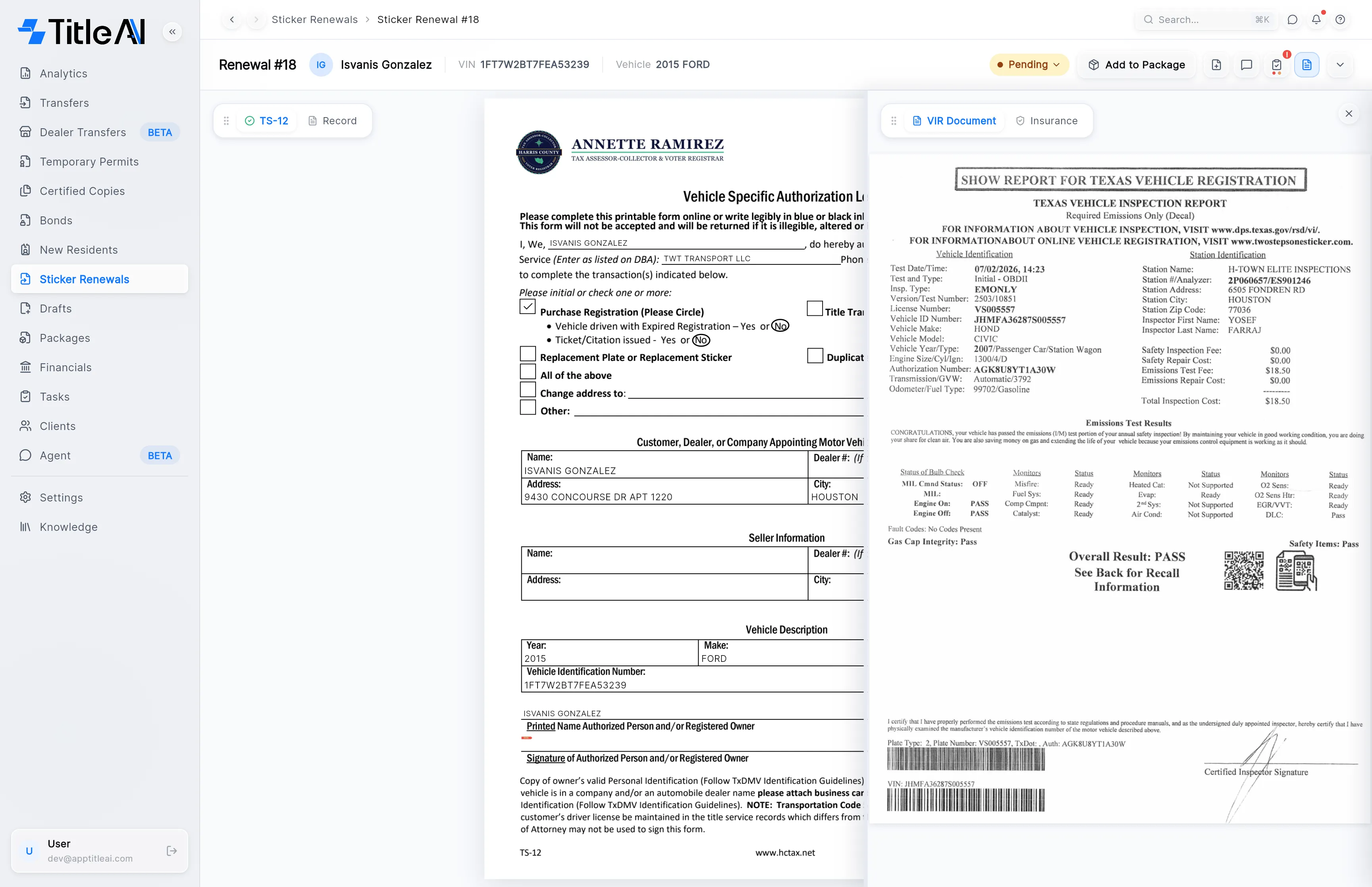
| File icon | Show uploaded documents: the papers the TS-12 was read from. |
| Chevron | Shows the client, vehicle and renewal details, and the quick links. |
| Print and download | On the rail at the right of the form, with the zoom controls. |
Change the status
Section titled “Change the status”Click the status pill and pick the new status.
Check the form against the papers
Section titled “Check the form against the papers”Click the file icon to open the uploaded documents over the form. Each uploaded document has its own tab, such as VIR Document and Insurance.
See what still fails
Section titled “See what still fails”Click the clipboard. The checklist reads the TS-12 and the documents and groups what it finds. Go to field jumps to the field it means, and Re-check runs it again after you fix something.
Go to the client or the invoice
Section titled “Go to the client or the invoice”Click the chevron at the right of the header. Quick Links has View Client Profile and View Invoice.
