
Documents
Every trámite has a file-plus icon in its header, Add supporting document. It opens a window for attaching another file to that trámite: from this computer, or from a phone when the papers are in your hand and there is no scanner.
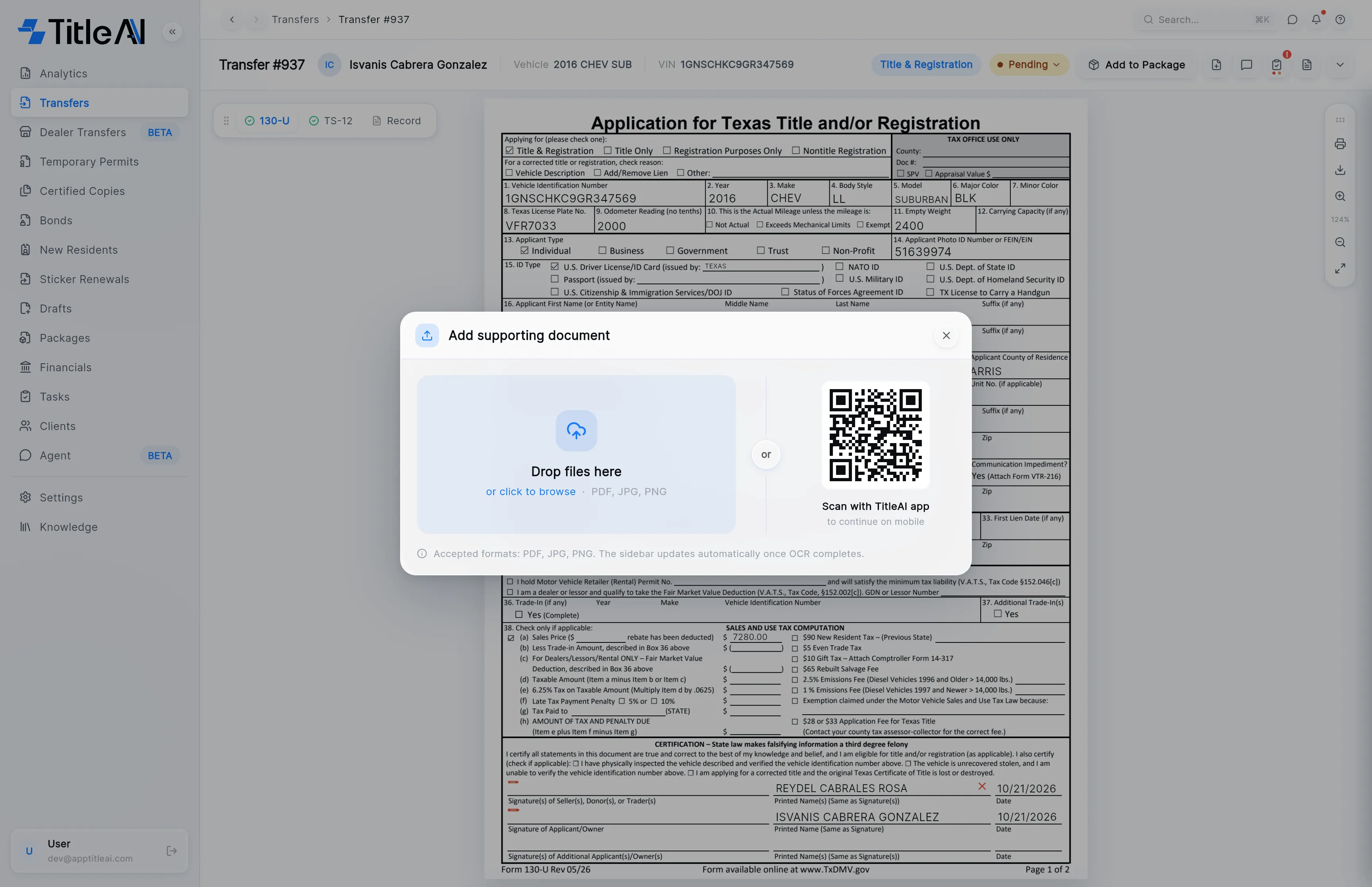
Attach a file from this computer
Section titled “Attach a file from this computer”-
Open the trámite and click the file-plus icon in its header.
-
Drag the PDF or photo onto Drop files here, or click the box to browse. It takes PDF, JPG and PNG.
-
Wait for the green check on the file’s row. The dot is amber while it uploads and blue while it is read. A red × means it failed; hover it to see why.
-
Close the window. The file is already on the trámite, in its uploaded documents.
Send a document from a phone
Section titled “Send a document from a phone”-
In the same window, point the phone’s camera at the Scan with TitleAI app code. Leave the window open on the computer.
-
The phone opens Add supporting document for this trámite, with its name under the title. Tap Scan with camera to photograph the paper, or Tap to upload a file to pick one already on the phone.
-
Each file sends as you add it: “Uploading”, then “Reading…”, then the document type.
-
Tap Done. The files are already in TitleAI.
| On screen | What it means |
|---|---|
| Detecting… | The kind of document is still being worked out. It then shows the document type and page count. |
| × at the end of a row | Removes that file from the trámite. |
| to continue on mobile | The caption under the code. The code is a one-time handoff to your own phone for this trámite, not a link to share. |
Look at the documents already uploaded
Section titled “Look at the documents already uploaded”Every trámite with uploaded papers has a page icon in its header, Show uploaded documents. It opens the papers next to the form, so you can check one against the other without leaving the screen.

-
Open the trámite and click the page icon, the one after the clipboard. The panel slides in from the right, over the form.
-
Pick a document from the tabs at the top left of the panel. There is one tab per uploaded document, named by its type: ID, Vehicle Title and so on.
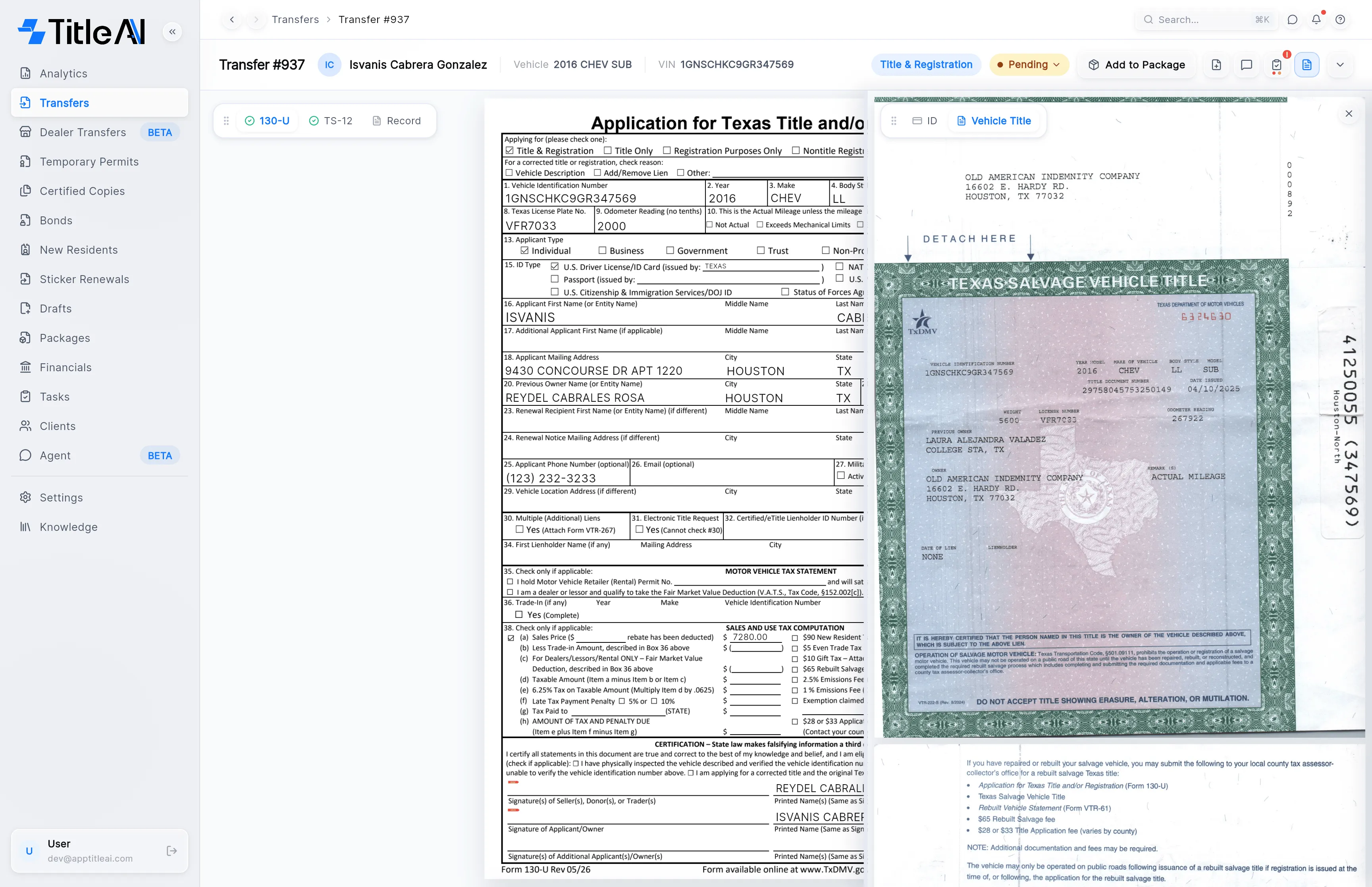
-
Scroll inside the panel to read the rest of a PDF. To make the panel wider, drag its left edge. The tabs can be dragged by their grip if they cover what you are reading.
-
Close the panel with the × at its top right, or click the page icon again.
The panel has no print, download or zoom buttons of its own: the ones on the right edge of the form are for the form. Only one panel sits on the right at a time: opening Notes & tasks closes the documents, and the other way round.