
Packages
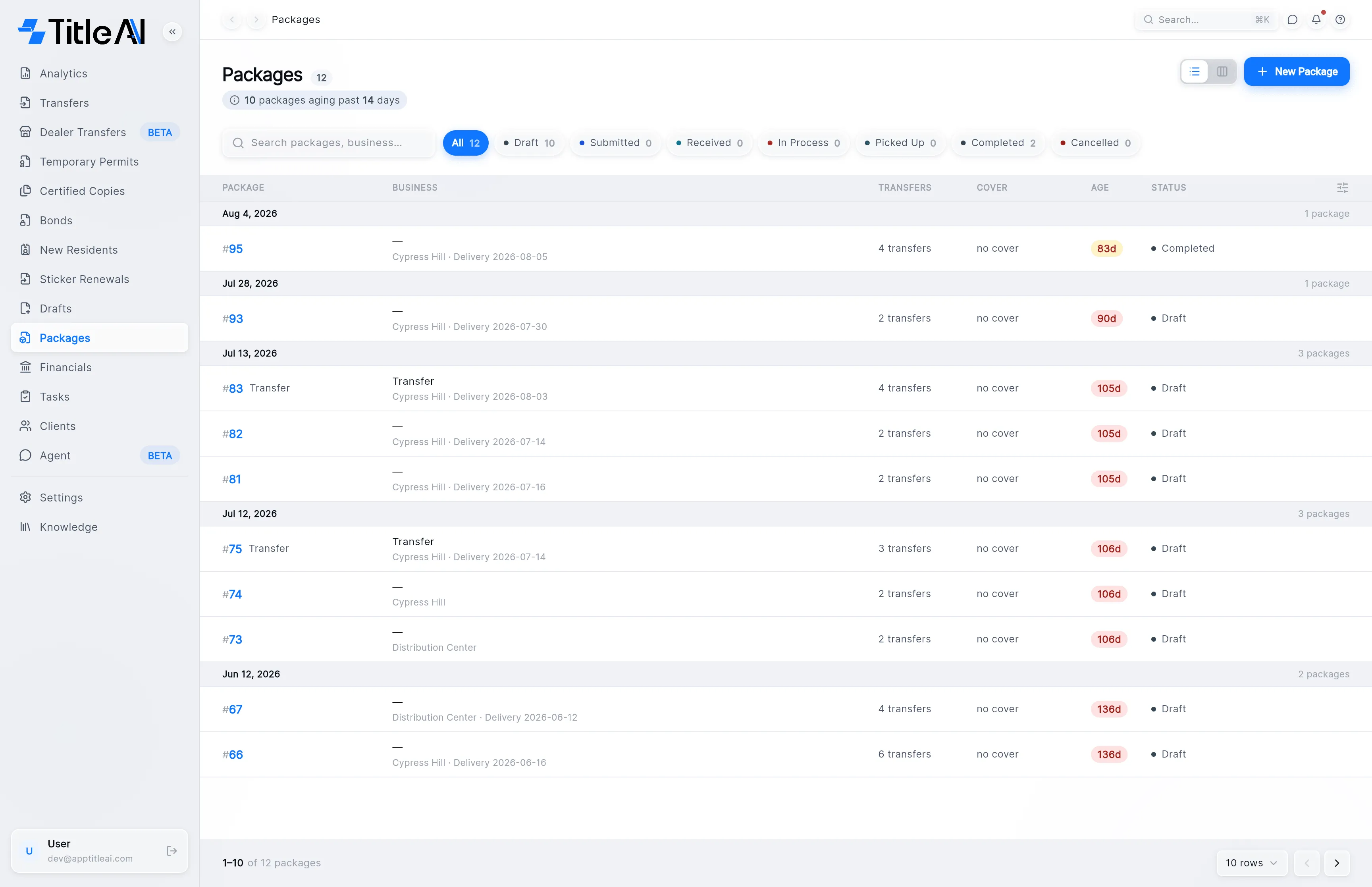
Packages in the sidebar is where you put together what goes to the county in one trip. A package holds up to ten trámites (transfers, new resident registrations and sticker renewals) and TitleAI fills its cover forms, the MV-501 and TS-5, from them.
The packages list
Section titled “The packages list”
- Search box: matches the package number and the business.
- Status chips: show only the packages in that status. Each carries a count.
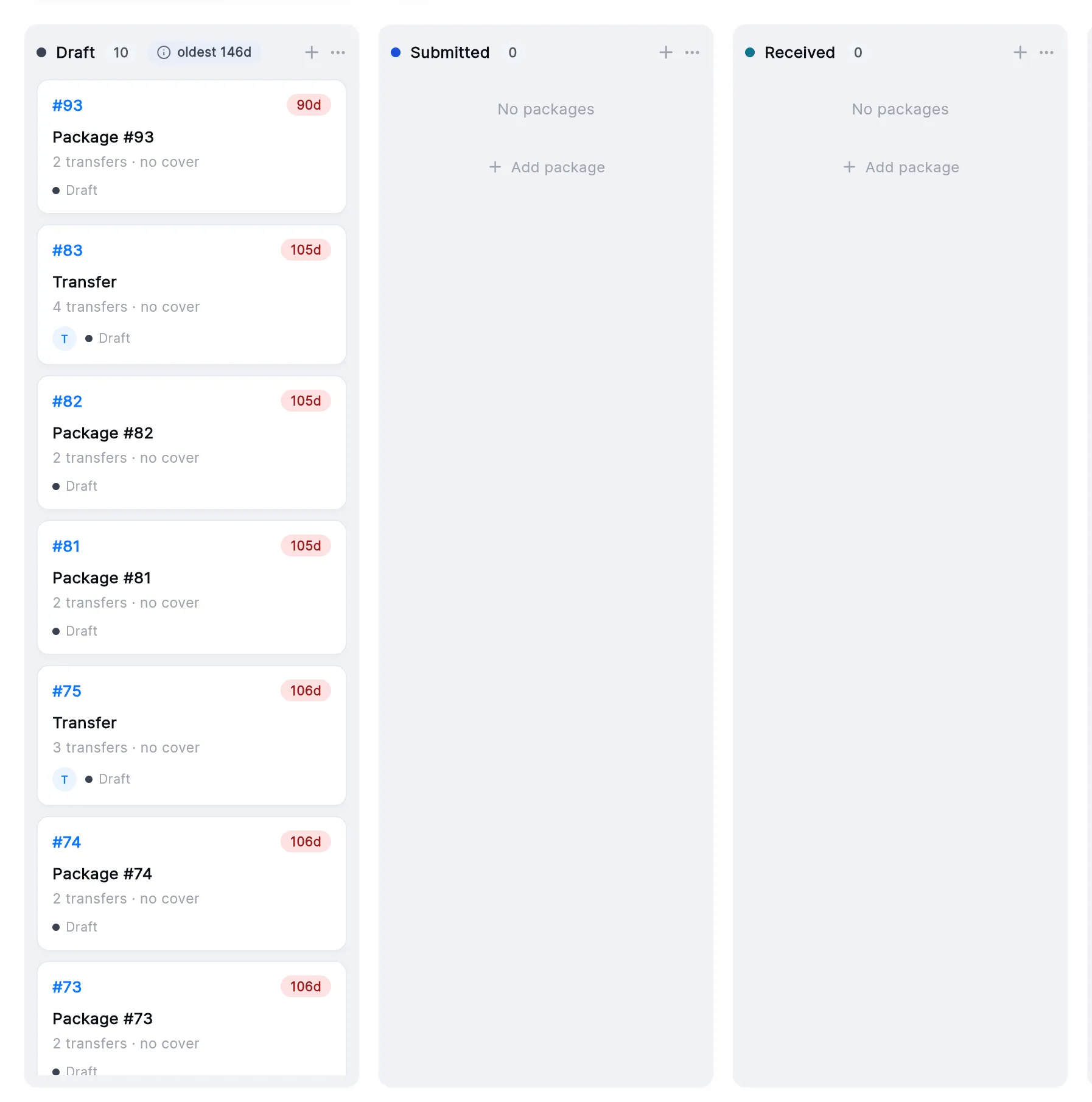
- List / board switch: the two icons left of New Package. The board has one column per status, and you move a package by dragging its card.
What the statuses and columns mean
Section titled “What the statuses and columns mean”| On screen | What it means |
|---|---|
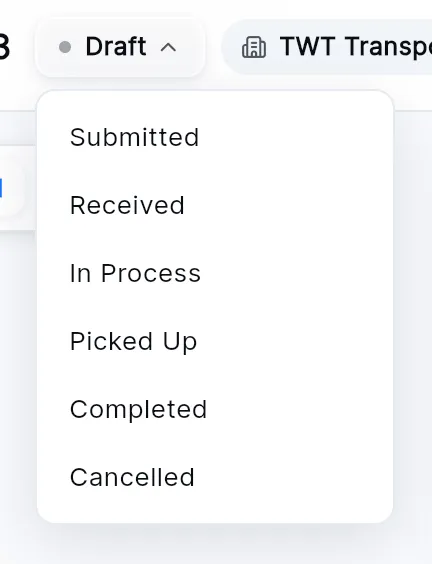
| Draft | Being put together. The only status in which you can add or remove trámites and change the office, runner or date. |
| Submitted | Dropped off at the county. |
| Received | The county has it. |
| In Process | The county is working on it. |
| Picked Up | Collected from the county. |
| Completed | Closed. Final. |
| Cancelled | Called off. Its trámites go back to the pool and can go in another package. Final. |
| Business | The business the package is for. Underneath, the drop-off office and the delivery date. |
| Transfers | How many trámites are in it. |
| Cover | How many of the ten rows on the cover forms are filled (“cover 3/10”), or “no cover”. |
| Age | Days since the package was created. |
A status only moves forward. Going to the next one happens straight away; skipping one, or choosing Completed or Cancelled, asks you to confirm first.
Create a package
Section titled “Create a package”-
On the Packages list, press New Package.
-
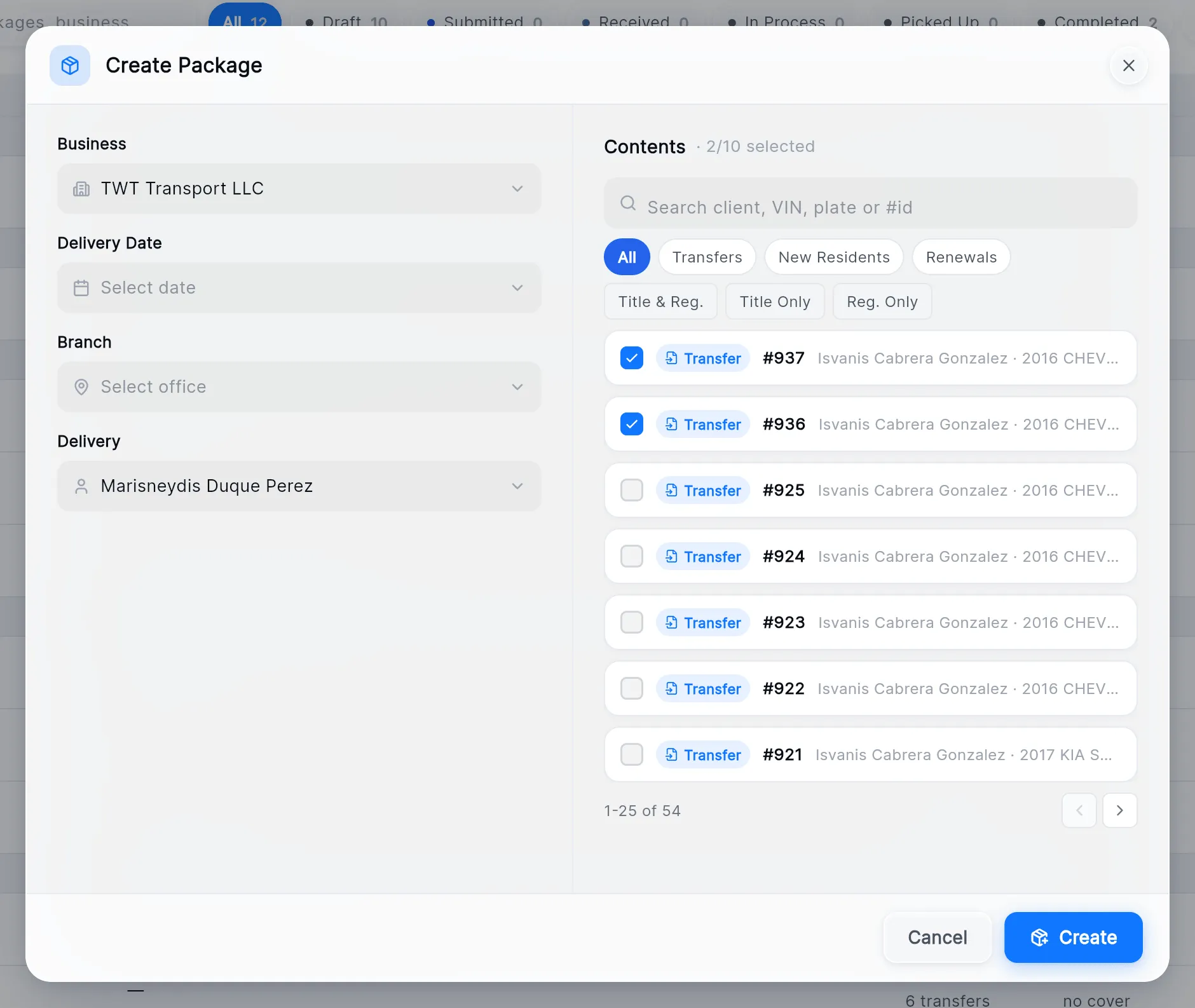
On the left, choose the Business (if you work under more than one), the Delivery Date and the Branch (the county office where it is dropped off). Under Delivery, pick the owner or runner who takes it.
-
On the right, under Contents, tick the trámites that go in it. The chips narrow the list to Transfers, New Residents or Renewals, and by type; the search takes the client, VIN, plate or number. Once ten are ticked the rest grey out.
-
Press Create. The new package opens.
If the runner you pick has no permit number on file, the window asks for it before you can create the package. A runner whose license or permit has expired shows a warning but doesn’t stop you.
The package screen
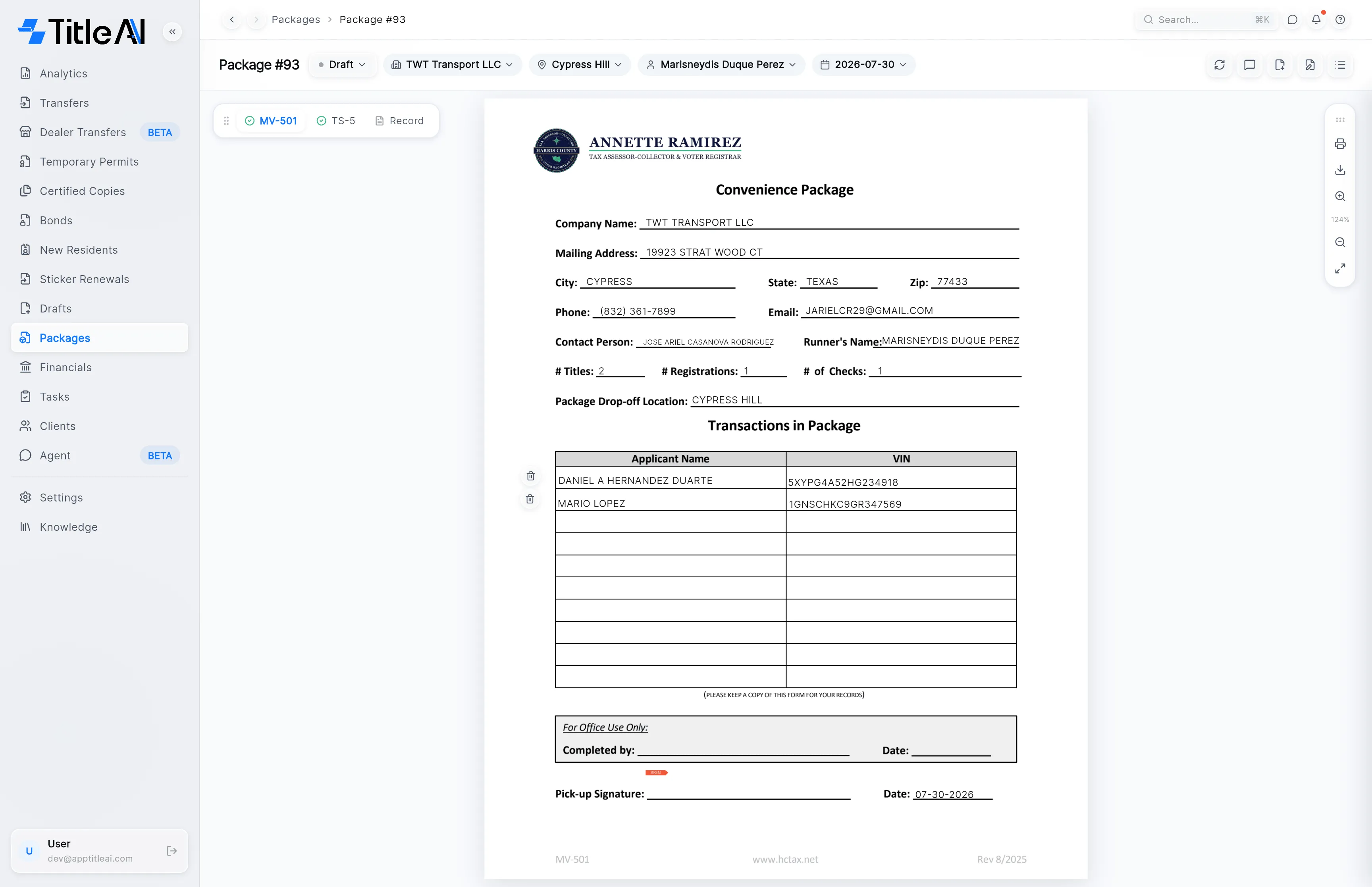
Section titled “The package screen”Opening a package shows its cover forms down the left tabs, the selected form in the middle, and its details and tools across the top.

| Control | What it does |
|---|---|
| Status pill | Shows the status. Click it to move the package on; it only offers the statuses it can go to next. |
| Business, office, runner and date pills | Click one to change it. Only while the package is a Draft; once submitted, the office and date are locked. |
| MV-501 and TS-5 tabs | The cover forms, filled from the package’s contents. |
| Record tab | The whole package as one PDF, rebuilt after every change. |
| Circular arrows | Sync HCTO: asks the county tax office for the package’s latest status. |
| Speech bubble | Notes & tasks for this package. See Notes & tasks. |
| File-plus icon | Add transfers (Draft only). |
| Document icon | Add external entry (Draft only). |
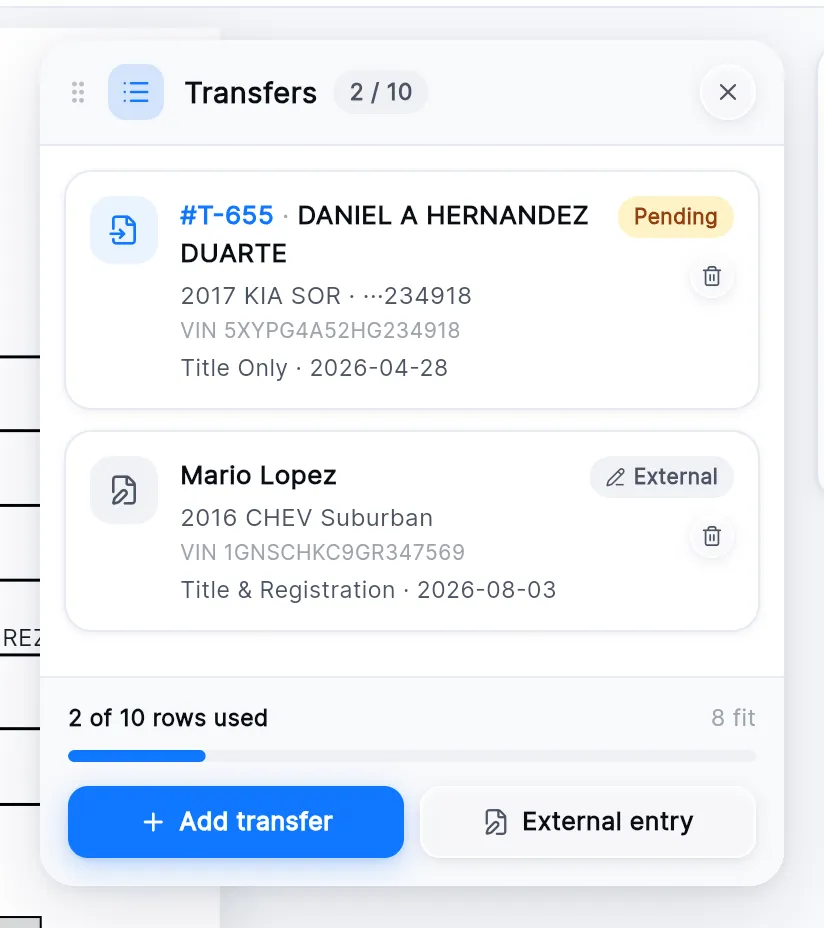
| List icon | Transfers: the card listing what is in the package. |
| Right-hand rail | Print, download and zoom the form on screen. |
Move the package to its next status
Section titled “Move the package to its next status”Click the status pill and pick the new status.
See and change what is in it
Section titled “See and change what is in it”Click the list icon. The Transfers card shows each row on the cover, how many of the ten rows are used, and the buttons to add more. Click a row to open that trámite; the trash icon takes it out of the package (it goes back to the pool, nothing is deleted).
Add trámites
Section titled “Add trámites”-
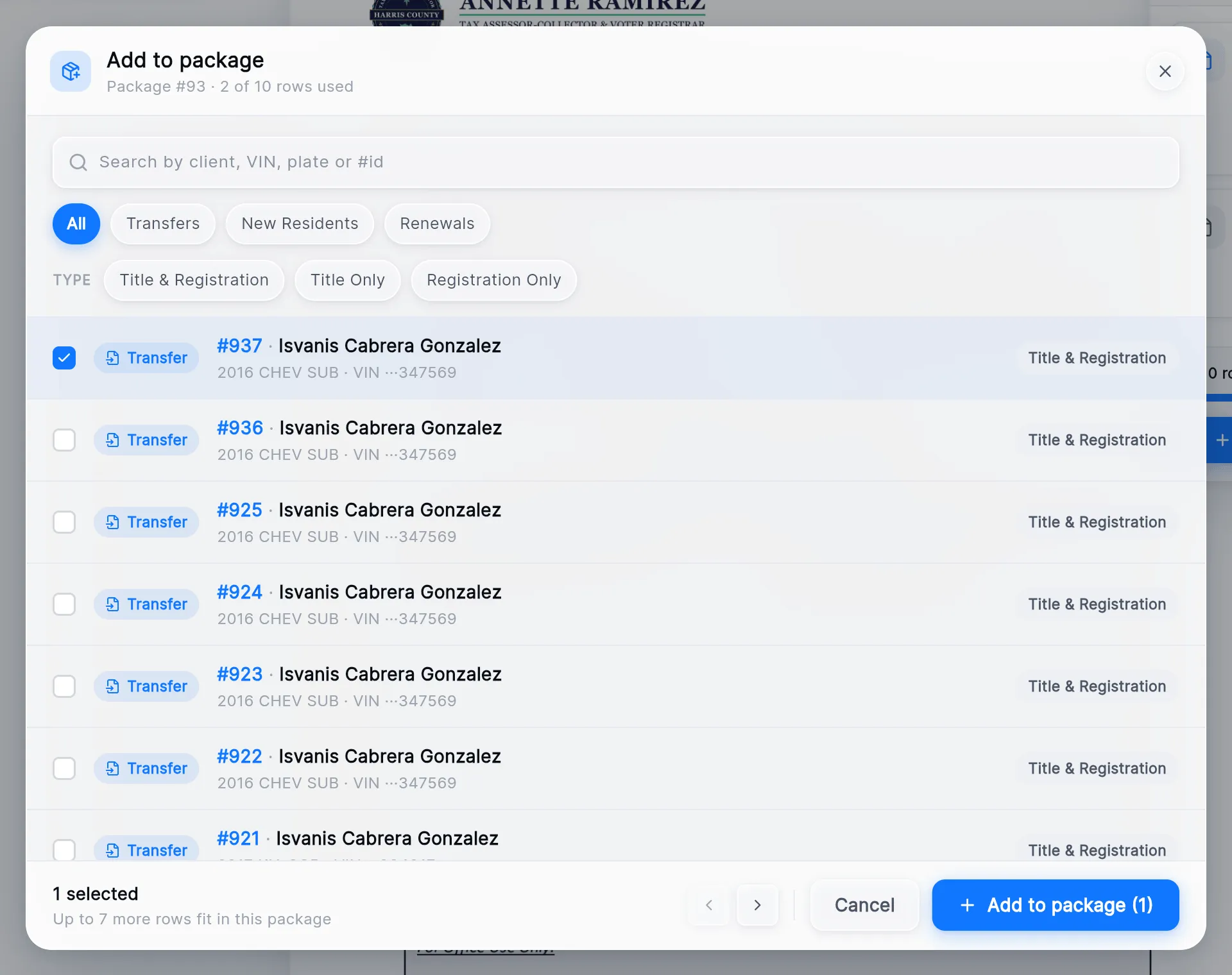
Press Add transfer on the Transfers card, or the file-plus icon in the header.
-
Tick the trámites to add. The subtitle says how many rows are still free.
-
Press Add to package.
Add a trámite that isn’t in TitleAI
Section titled “Add a trámite that isn’t in TitleAI”For something you are dropping off that was never entered in TitleAI, press External entry. Fill in the Applicant Name, VIN, Transfer Date and Transfer Type, and press Add Entry. Save & Add Another keeps the window open for the next one.
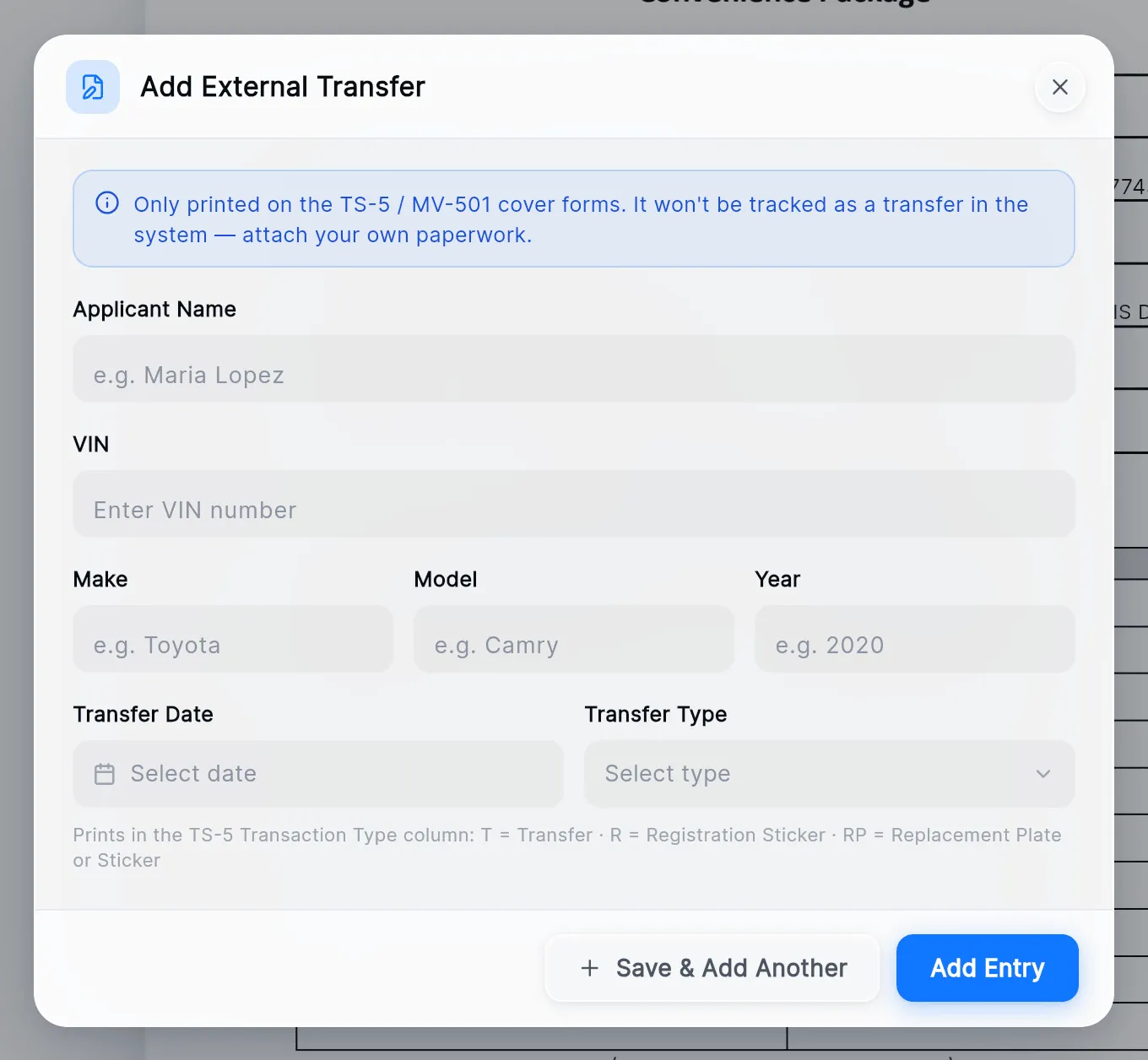
An external entry is only printed on the MV-501 and TS-5. TitleAI doesn’t track it as a transfer, so bring its paperwork yourself. Removing it deletes it for good.